Connecting Your Store
Link your e-commerce platform to enable automatic order syncing and fulfillment.
How store connections work
PrintPort3D uses Shippo as the bridge between your store and our fulfillment system. Rather than connecting directly to each e-commerce platform, we connect to your Shippo account—and Shippo connects to your store.
Why Shippo?
The connection process
Connecting your store is a two-part process:
On PrintPort3D
Tell us which platform you use and authorize your Shippo account. This takes about 2 minutes.
In Shippo
Connect your actual store inside Shippo's dashboard. This is where the real integration happens.
Let's walk through each part step by step.
Part 1: PrintPort3D setup
Select your platform
During onboarding (or from Settings), you'll see the "Connect Your Store" screen. Select your e-commerce platform from the dropdown.
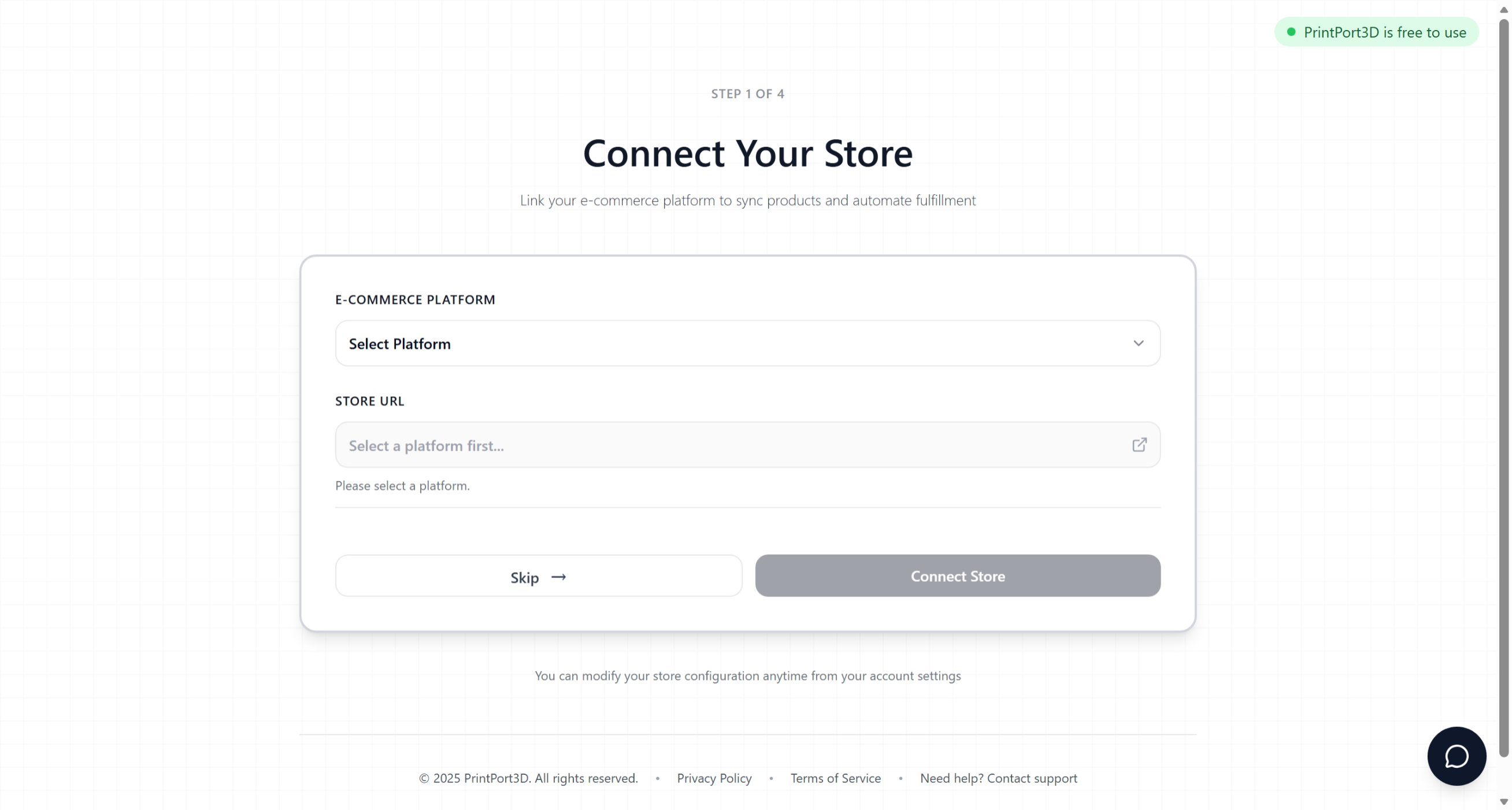
Connect store screen
This step helps us understand your setup and display relevant information. The actual connection happens in Part 2.
Authorize Shippo
Next, you'll authorize PrintPort3D to access your Shippo account. This is the OAuth connection that enables order syncing.
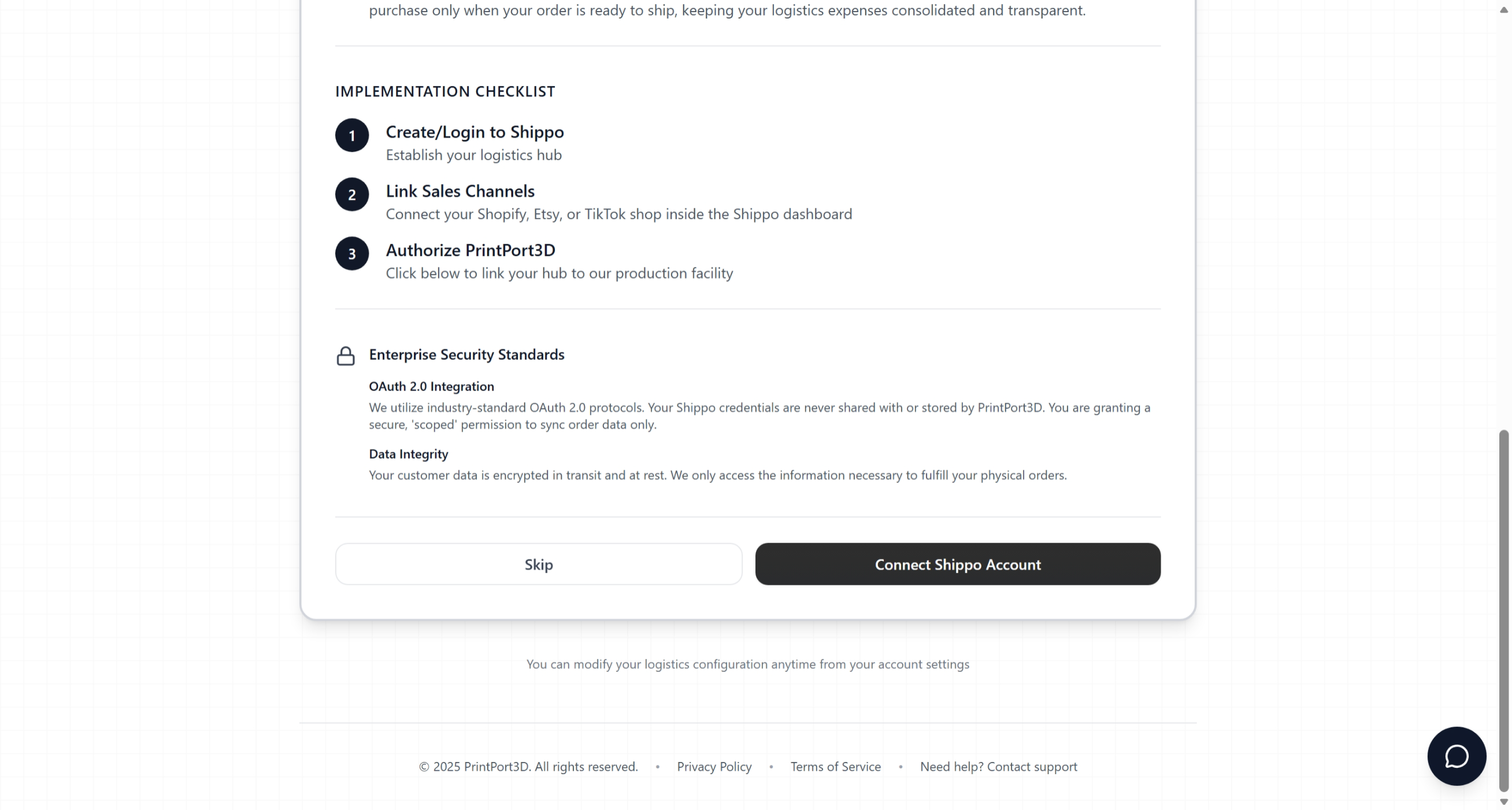
Shippo authorization
What this authorization enables:
- Reading orders from your connected stores
- Creating shipping labels on your behalf
- Pushing tracking numbers back to your store
Don't have a Shippo account?
Part 2: Connect your store in Shippo
After authorizing Shippo, you need to connect your actual store inside Shippo's dashboard. This is what enables orders to flow automatically.
Open Shippo Settings → Stores
In Shippo, navigate to Settings → Your business → Stores. You'll see a list of supported platforms.
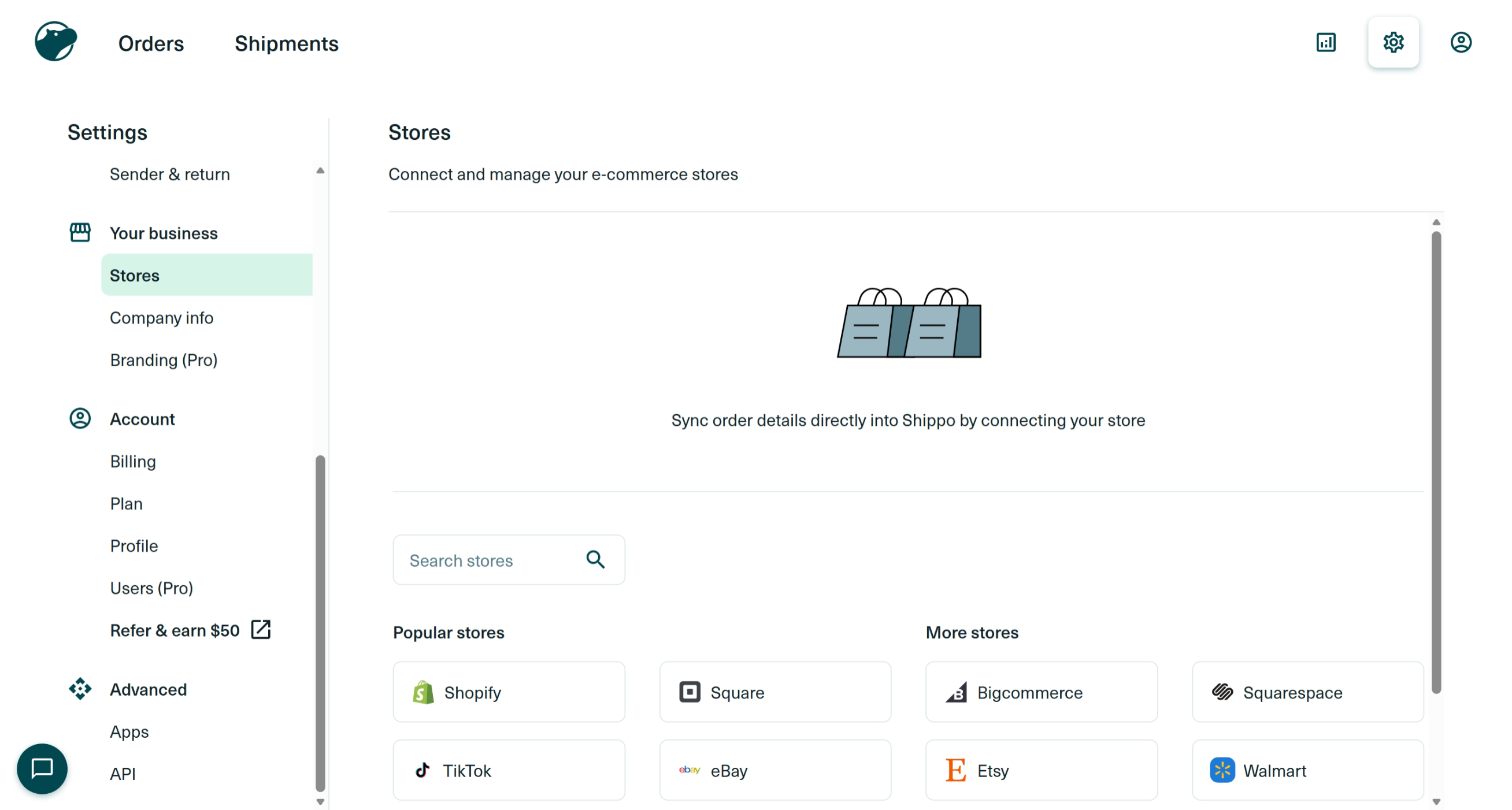
Shippo stores settings
Select your platform and enter store URL
Click on your platform (e.g., Shopify) and enter your store URL when prompted.
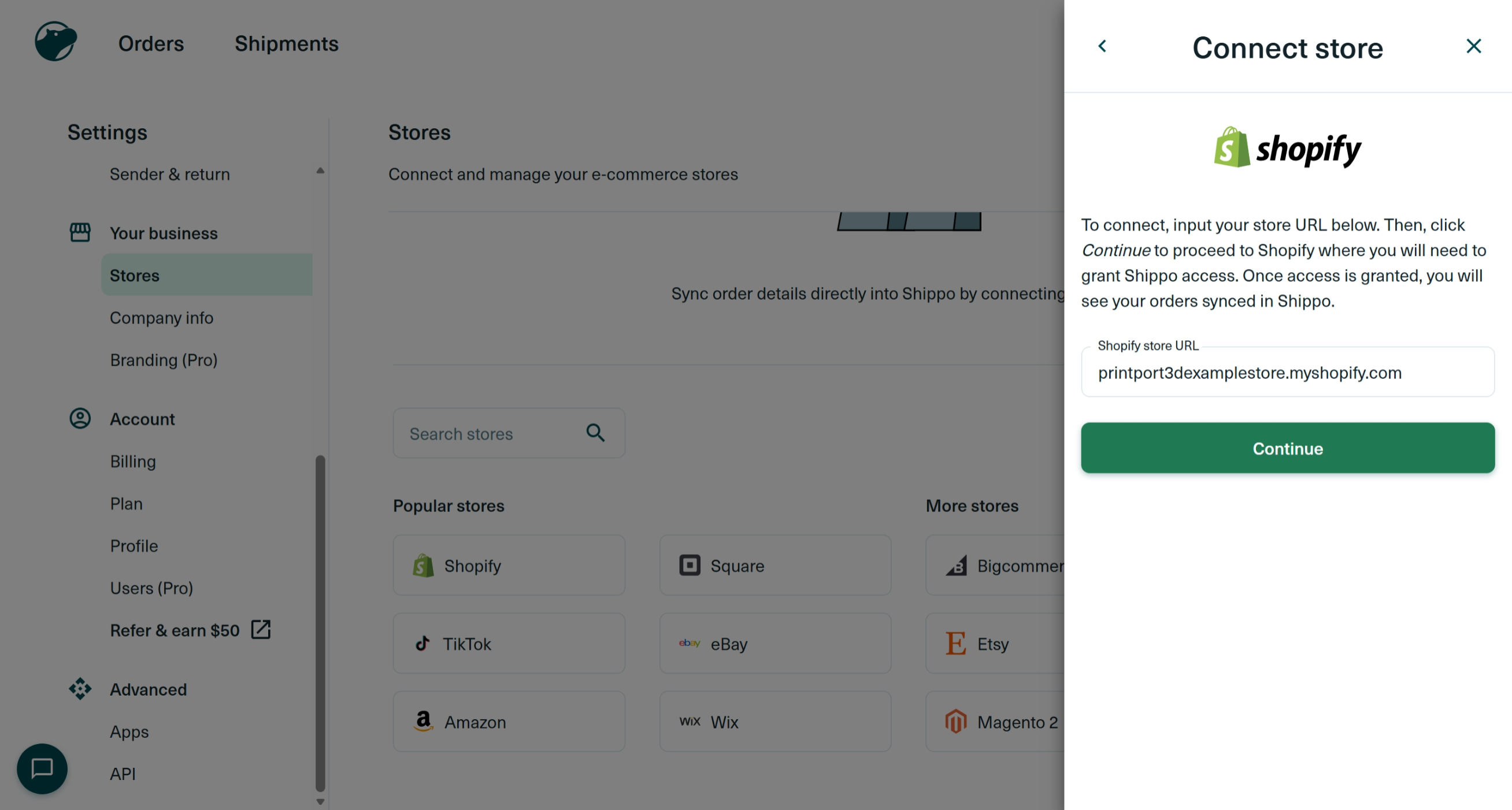
Store URL input
For Shopify, enter your myshopify.com URL (e.g., yourstore.myshopify.com). Other platforms may require different credentials.
Authorize the connection
You'll be redirected to your platform to authorize Shippo. Review the permissions and click Install/Authorize.
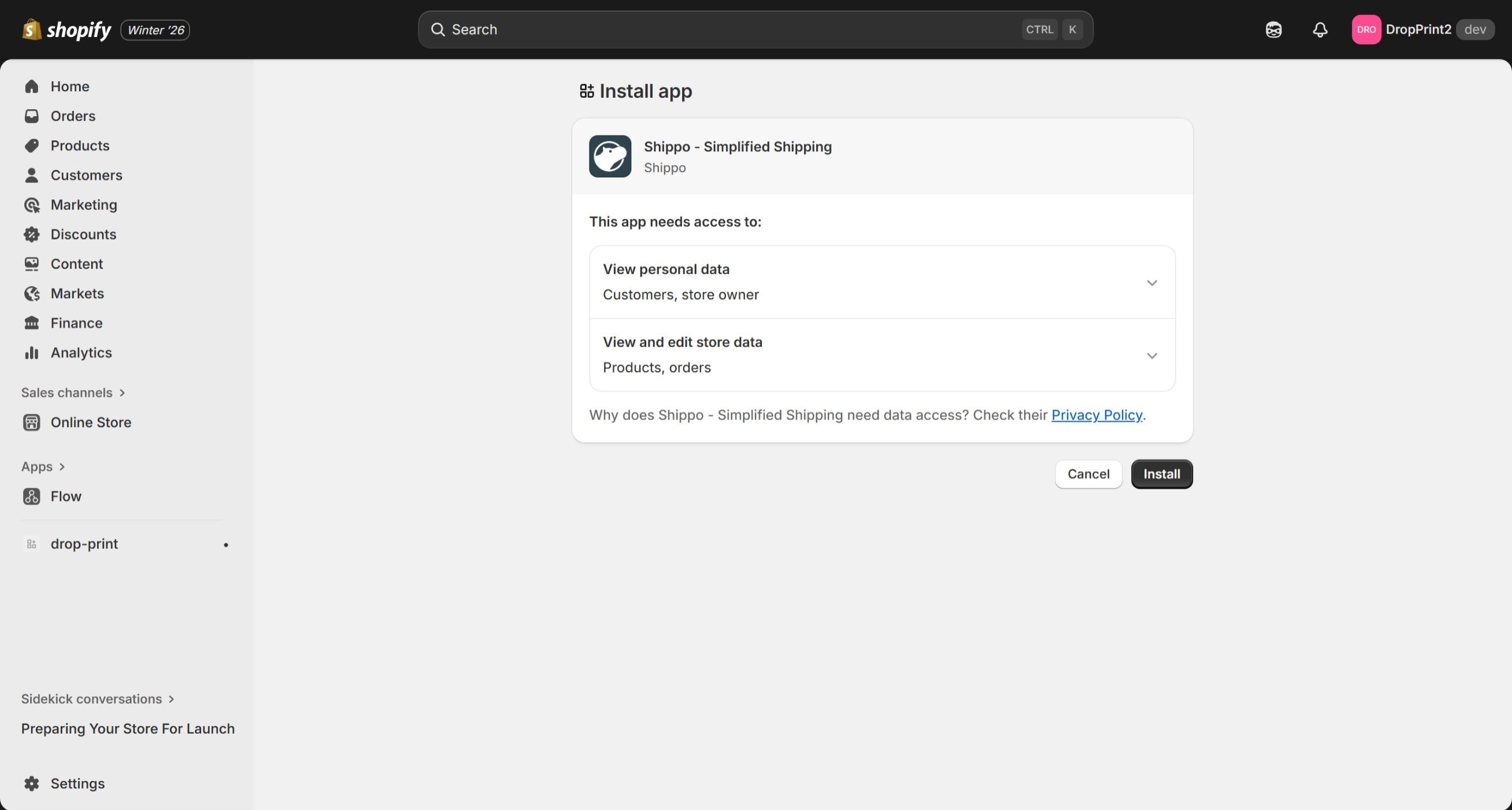
Platform authorization
Shippo needs to view orders and products to sync them. This is standard for any fulfillment integration.
Confirm the connection
Once authorized, you'll see your store listed in Shippo with a connected status.
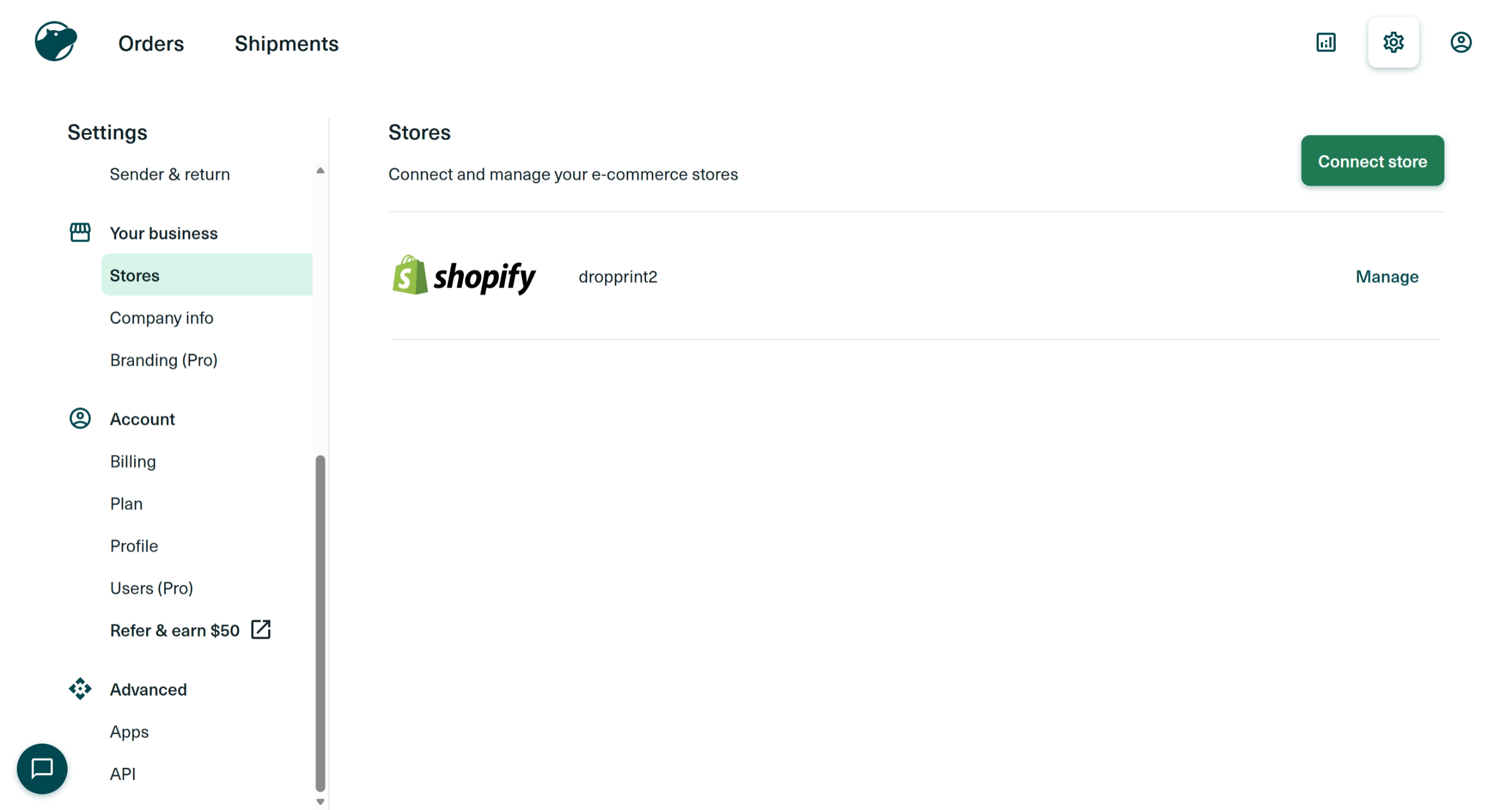
Store connected
Orders will now automatically sync to Shippo, and from Shippo to PrintPort3D. The first sync may take a few minutes.
Supported platforms
Shippo integrates with 50+ e-commerce platforms. Here are the most popular ones:
Don't see your platform? Check Shippo's full integration list.
What happens after connecting
Once your store is connected, here's how the order flow works:
SKU matching
Don't have a store?
You can use PrintPort3D without connecting a store:
Custom orders
Create one-off orders manually for customers who contact you directly.
Connect later
Skip store connection during setup and add it later from Settings when you're ready.
Troubleshooting
Orders aren't syncing
Check that your store is connected in Shippo → Settings → Stores. If it shows as disconnected, re-authorize the connection.
Shippo authorization failed
Try logging out of Shippo, clearing your browser cache, and authorizing again from PrintPort3D Settings.
Store shows connected but no orders appear
Shippo only syncs new orders placed after connection. Past orders won't import automatically. Place a test order to verify the connection.
Want to connect a different store?
You can connect multiple stores in Shippo. Each store's orders will sync to PrintPort3D separately.