Managing Products
Control your product catalog with draft mode, visibility settings, and SKU management for seamless order fulfillment.
Product management overview
Your product library is the heart of your PrintPort3D business. Each product represents a unique SKU that your customers can order—complete with 3D model, material specifications, pricing, and shipping configuration.
Unlike traditional inventory systems, PrintPort3D products are print-on-demand. There's no physical inventory to track—each product is manufactured when ordered. This gives you unlimited flexibility to add, modify, or remove products without leftover stock concerns.
Draft Mode
Test products privately before making them live to customers.
SKU Matching
Automatic order routing based on product SKUs from your store.
Manual Mapping
Orders for draft products require manual product selection.
Delete Products
Remove test products or permanently delete items you don't need.
Product status types
Draft products & testing
Draft mode lets you create and test products before they go live. Products marked as drafts won't automatically fulfill orders—instead, they'll appear as SKU mismatches, requiring you to manually select which product to print.
How draft mode works
When to use draft mode
Upload the 3D model, configure materials, and verify costs before launching publicly.
Create draft products for one-off custom requests where you want manual control before printing.
Test different material configs to see how they affect production costs.
Setting a product as draft
Create or edit a product
When creating a new product, you'll see a "Save as Draft" checkbox at the bottom of the form. Check this box before saving.
Draft indicator appears
Products in draft mode show an amber "Draft" badge in your products list.
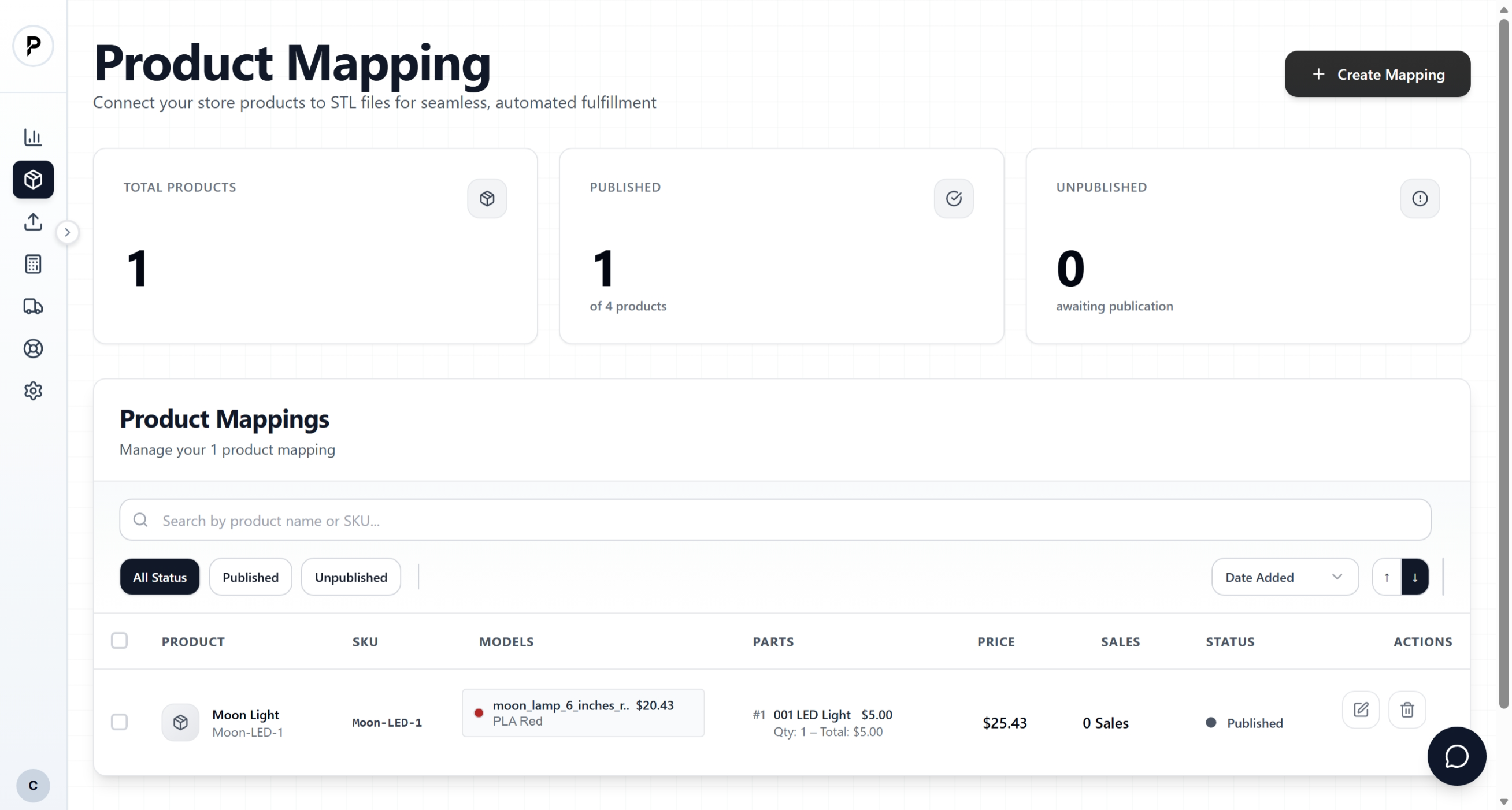
Product list showing draft badge
Orders trigger manual mapping
If a customer orders this product (via your store), the order will appear as "SKU Mismatch" in your orders dashboard. You'll need to manually select which product to fulfill it with.
Draft products don't auto-fulfill
Making a draft product live
When you're ready to accept automatic orders:
Edit the product
Click Edit on the draft product.
Uncheck Draft mode
Scroll to the bottom and uncheck "Draft Mode", then click Save Changes.
Orders now auto-fulfill
Future orders for this SKU will automatically match and send to production without manual intervention.
SKU matching & order routing
PrintPort3D automatically routes orders from your connected stores (Shopify, Etsy, WooCommerce) by matching the SKU from your store product with the SKU in your PrintPort3D catalog.
How automatic matching works
Customer orders "Dragon Statue" with SKU DRAG-001-RED
Looks for a product with SKU DRAG-001-RED
Order automatically sends to production with the correct 3D model, material, and settings
SKU best practices
PRODUCT-SIZE-COLOR(e.g., VASE-SMALL-BLUE, GEAR-20T-BLACK)When SKU matching fails
If an order's SKU doesn't match any active products, OR if the matched product is a draft, the order status becomes "SKU Mismatch".
Common causes:
- Product is in draft mode (intentional manual review)
- SKU typo in your store vs. PrintPort3D
- Product not yet added to PrintPort3D
- Product was deleted
- Case sensitivity mismatch (SKU001 vs sku001)
Fixing SKU mismatches
To fix a SKU mismatch, update the SKU in your PrintPort3D product to match your store. Edit the product, change the SKU field to match exactly (case-sensitive), and save. Future orders will then automatically route to the correct product.
Manual mapping is order-specific
Product management best practices
Always use draft mode for new products
Create new products as drafts to verify pricing, 3D model preview, and material costs before publishing. This prevents accidental orders for untested items.
Keep SKUs consistent across platforms
Use the exact same SKU format in Shopify/Etsy/WooCommerce and PrintPort3D. Consistency prevents SKU mismatches and ensures automatic order routing.
Delete only test products with zero orders
Once a product has orders, avoid deleting it. Instead, set it as draft. Deletion removes order history and breaks analytics.
Use descriptive product names
Include key details in product names for easy identification: "Dragon Statue - Large - Red PLA" is better than "Dragon1".
Troubleshooting
Orders showing "SKU Mismatch" for live products
Check that:
- Product is NOT in draft mode (check the draft badge)
- SKU matches exactly (case-sensitive)
- There are no extra spaces in the SKU
Can't find a product in my catalog
If a product seems missing:
- Check if it's set as draft (filter by "Drafts Only")
- Try searching by SKU instead of name
- Verify you're looking in the correct user account
- Contact support if product was accidentally deleted