Payment Configuration
Everything you need to know about setting up payments, understanding charges, and managing your billing for seamless fulfillment.
Why payment setup matters
PrintPort3D uses a pay-as-you-go model. When your customer places an order, we automatically charge your saved payment method for the production cost, then immediately start manufacturing and shipping the order.
This means you're never paying upfront for inventory that might not sell. You only pay when you've already been paid by your customer—creating a positive cash flow from day one.
- ✓ Orders fulfill automatically 24/7
- ✓ No manual approvals needed
- ✓ Fastest turnaround time (same-day processing)
- ✓ No order minimums or prepayment required
- ✓ Backup cards prevent failed orders
- ✓ Detailed receipts for accounting
- ⚠ Orders wait for manual payment
- ⚠ 1-3 day processing delay per order
- ⚠ Requires email invoicing for each order
- ⚠ Weekend orders wait until Monday
- ⚠ Higher risk of customer complaints
- ⚠ Manual reconciliation needed
Payment security
Understanding the payment flow
It's important to understand exactly when and how money moves. Here's the complete flow for a typical order:
Customer pays $45 through your Shopify/Etsy/WooCommerce store. This money goes directly to YOUR payment processor (Stripe, PayPal, etc.).
Within seconds, the order data (shipping address, product SKU, quantity) syncs to PrintPort3D via our store integration webhook.
We charge your saved payment method for the production cost: $12 materials/labor. You'll purchase the shipping label through your connected Shippo account separately.
File is sliced, sent to printer queue, printed, quality-checked, and packaged. You can track progress in real-time from your dashboard.
Package ships with tracking. Customer receives email with tracking number. Your order status updates to "Shipped" with carrier and ETA.
You're always paid first
Adding a credit or debit card
Credit and debit cards are the fastest way to get started. Here's the complete process:
Navigate to payment settings
From your dashboard, click Settings in the sidebar (gear icon), then scroll to the Payment & Billing section. You can also access this directly via Settings → Payment & Billing.
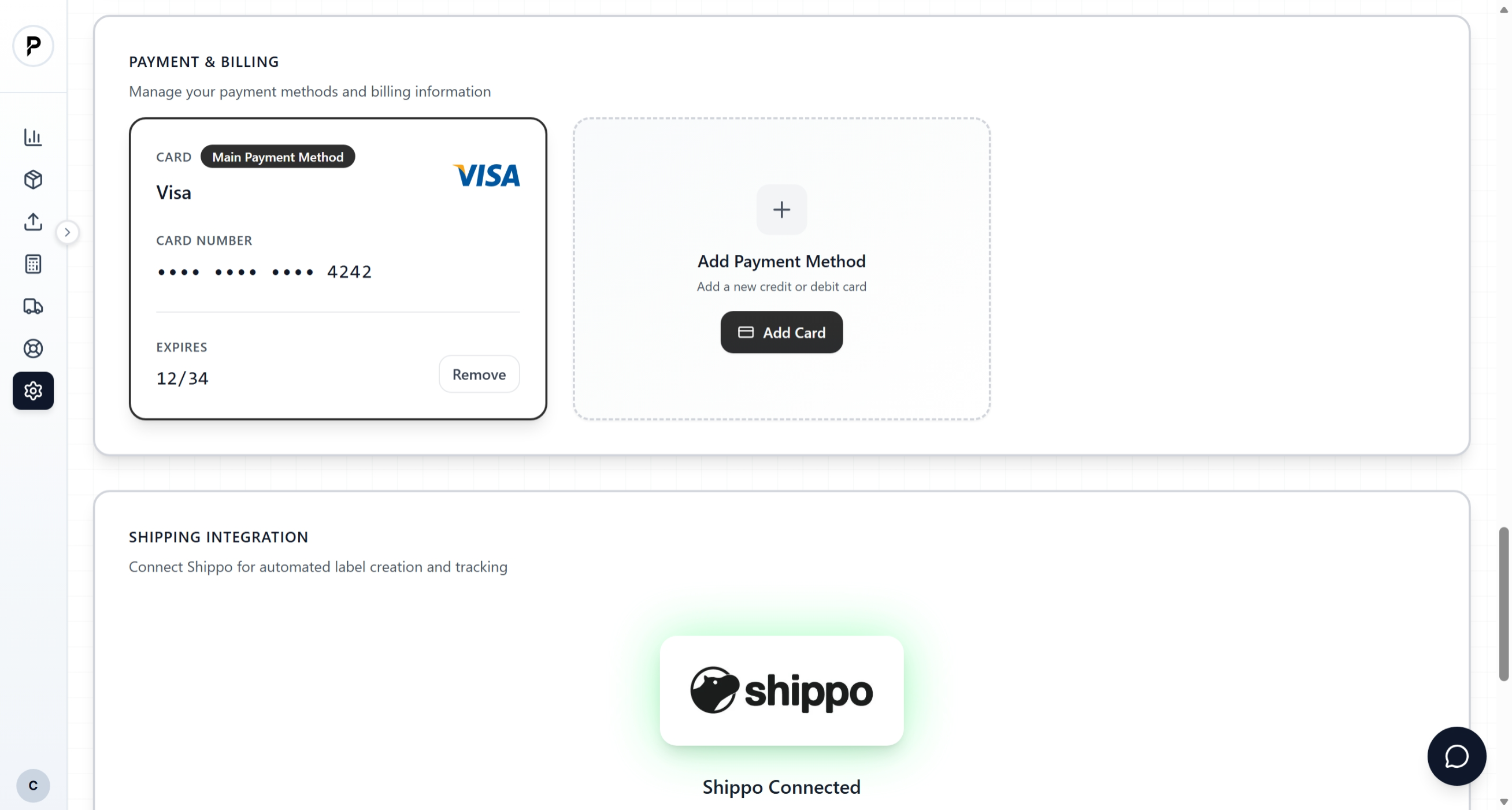
Settings showing Payment & Billing section
Click Add Payment Method
Click the + Add Payment Method button. A secure modal will open powered by Stripe. This modal loads directly from Stripe's servers—your card data never touches our infrastructure.
Enter your card details
Fill in the secure card form:
| Field | What to Enter | Tips |
|---|---|---|
| Card Number | 16-digit number on front of card | Visa, Mastercard, Amex, Discover accepted |
| Expiration | MM/YY format | Card must have 1+ month until expiry |
| CVC | 3 or 4 digit security code | Back of card (Amex: front) |
| ZIP/Postal Code | Billing address ZIP code | Must match card's billing address |
| Country | Card's issuing country | International cards supported |
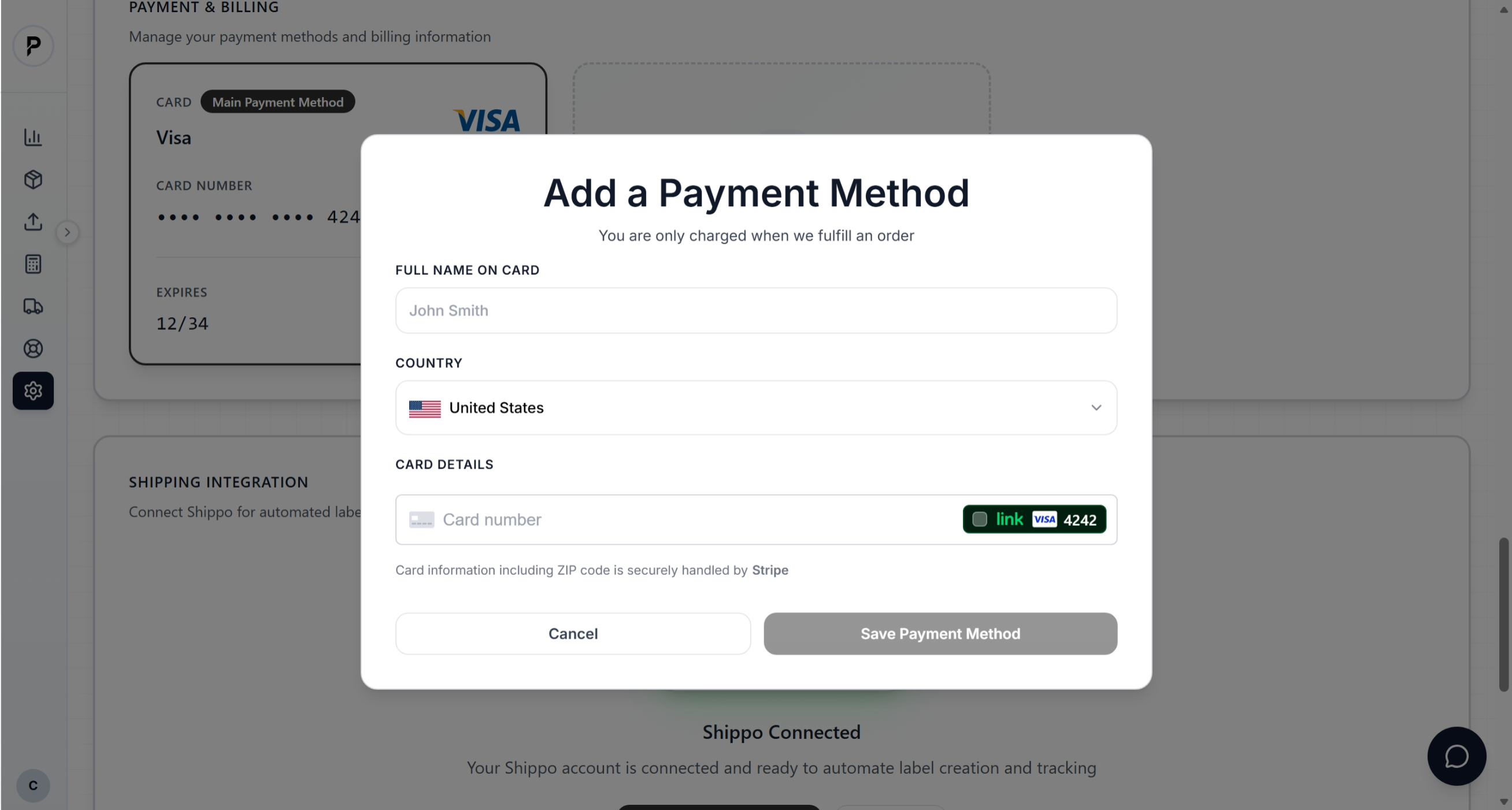
Card entry form with sample data filled in
Verify and save
Click Add Card. Stripe performs several checks:
- Card validation: Verifies the number is real and matches the network
- AVS check: Confirms ZIP code matches billing address on file
- $0 authorization: Confirms card is active (no actual charge)
If successful, your card appears in the list with the last 4 digits visible (e.g., "Visa •••• 4242").
Set as default (recommended)
Click the three-dot menu (⋮) next to your card and select Set as Default. The default card is charged first for all orders.
Why set a default?
Enable automatic fulfillment
Now that your card is saved, go to Settings → Fulfillment and ensure Automatic Fulfillment is toggled ON. This tells PrintPort3D to immediately charge your card and start production when orders arrive.
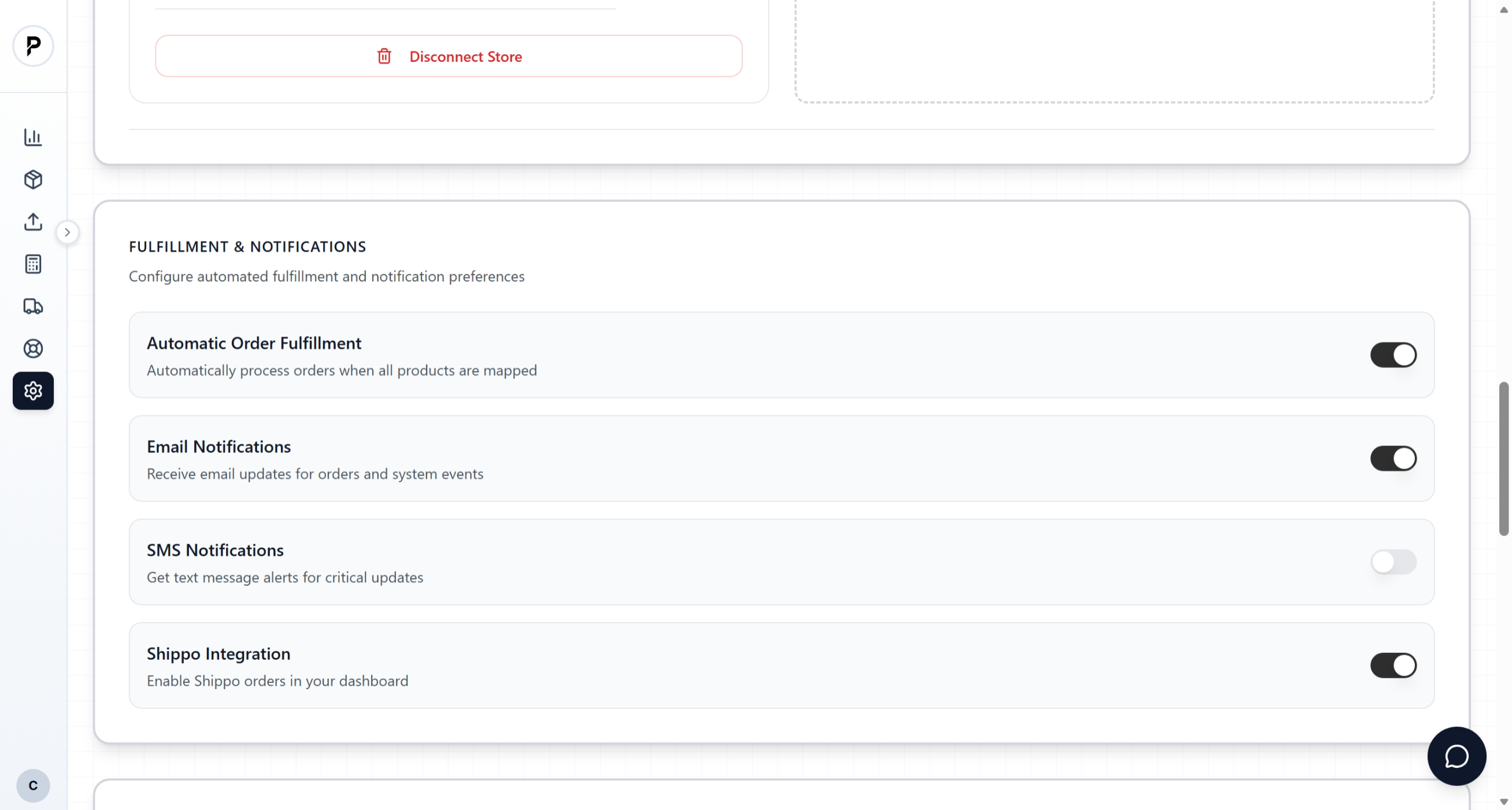
Fulfillment settings showing automatic fulfillment toggle
Your account is now configured for automatic fulfillment. When orders come in, they'll process immediately—even at 3 AM on a Sunday.
How charging works in detail
Understanding exactly when and how charges occur helps you manage cash flow and reconcile your accounts. Here's the detailed breakdown:
Charge timing
| Fulfillment Mode | When Charge Occurs | Order Processing Starts |
|---|---|---|
| Automatic (recommended) | Immediately when order syncs (1-2 min after customer checkout) | Immediately after successful charge |
| Manual approval | When you click "Approve" on order page | After you approve + charge succeeds |
What's included in each charge
We charge for production costs only. Shipping labels are purchased separately through your Shippo account.
Shipping label purchased separately through your Shippo account (~$6.40 for USPS Priority)
Charge authorization vs. capture
For most orders, we charge immediately (authorize + capture in one step). However, for orders over $500, we may use a two-step process:
We place a temporary hold on your card for the estimated amount. This appears as "pending" in your bank account.
Once production completes and we verify the final cost, we capture the exact production amount. The pending hold converts to an actual charge. Shipping labels are purchased separately through your Shippo account.
Multi-item orders
Managing your payment methods
You can have multiple payment methods on file. PrintPort3D will try them in order if one fails, ensuring orders are never delayed due to payment issues.
Payment method priority order
When charging for an order, we attempt payment methods in this order:
Managing card actions
| Action | How To | Notes |
|---|---|---|
| Set as default | Click ⋮ menu → "Set as Default" | Star icon appears; used first for all charges |
| Remove card | Click ⋮ menu → "Remove" | Must have 1+ payment method for auto-fulfill |
| Update expiry | Remove old card, add new one | Card numbers can't be edited directly |
| Change billing address | Click ⋮ menu → "Edit Billing Address" | Address can be changed without removing card |
| Add nickname | Click ⋮ menu → "Rename" | e.g., "Business Amex" or "Personal Visa" |

Payment methods page showing multiple cards with ⋮ menus
Card expiration handling
If your card expires, we'll try any backup cards on file. If no valid payment method is available, new orders will be paused until you update your card inSettings → Billing.
Keep your card up to date
Billing, receipts & accounting
PrintPort3D provides comprehensive billing documentation to help you track expenses, reconcile accounts, and prepare for taxes.
What you receive for every charge
Sent within seconds of each charge with order details, itemized costs, and payment method used.
Downloadable invoice attached to each receipt email. Includes your business name if configured.
All charges visible in your Stripe dashboard for complete transaction history.
Understanding your receipt breakdown
Accessing billing history
Tax reporting
Your PrintPort3D production charges are business expenses (Cost of Goods Sold). Access detailed transaction history through your Stripe dashboard, which includes all data your accountant needs for tax filing.
- All charges available in Stripe Connect portal
- Production costs tracked separately from shipping (Shippo)
- Email receipts for every transaction
- Download capability through Stripe
When payments fail: troubleshooting guide
Payment failures happen occasionally. Understanding why and how to resolve them quickly keeps your orders on track.
Automatic recovery process
If your default card fails, we immediately try other saved cards in your payment priority order. No delay if a backup works.
You receive an email explaining which payment method failed and why (if the bank provided a reason). The email includes a direct link to fix the issue.
Sometimes cards fail due to temporary bank issues. We automatically retry all payment methods after 4 hours in case the issue resolved itself.
Another automatic retry plus a reminder email. The order is flagged as "Payment Required" on your dashboard.
If your card charges successfully but the shipping label purchase fails (through Shippo), we automatically refund the customer. You can manually retry the order using the retry button in your dashboard.
Common failure reasons & solutions
| Error Code | Meaning | How to Fix |
|---|---|---|
| insufficient_funds | Not enough balance | Add funds to account or use different card |
| card_declined | Bank rejected charge | Call bank to authorize; may be fraud protection |
| expired_card | Card past expiration | Add your new card, remove expired one |
| incorrect_cvc | Wrong security code | Re-add card with correct CVV |
| incorrect_zip | Billing ZIP doesn't match | Update billing address on card |
| processing_error | Temporary bank/network issue | Wait 1-2 hours and retry automatically |
| rate_limit | Too many attempts | Wait 24 hours before retrying this card |
How to manually retry payment
Find the order
Go to Dashboard → Orders and look for orders with a red "Payment Failed" badge, or click the link in your notification email.
Review the error
Click on the order to see the specific failure reason. This helps you know whether to update your card or just retry.
Fix the issue (if needed)
If the error requires updating your payment method, go to Settings → Payment Methodsfirst. Add a new card or update billing info.
Click Retry Payment
Return to the order and click the Retry Payment button. You can select which payment method to try, or let it use your default.
Your customer already paid
Payment security & compliance
Security is critical when handling payment information. Here's how PrintPort3D and our payment processor Stripe protect your financial data.
Security certifications
PCI DSS Level 1
Stripe maintains the highest level of PCI compliance, audited annually by a Qualified Security Assessor. This is the same standard used by major banks.
SOC 2 Type II
Independent audit verifying Stripe's security controls for data protection, availability, and confidentiality over time.
How your card data is protected
When you enter your card, it goes directly to Stripe's secure servers via encrypted connection. We only receive a token (like "card_1A2b3C4d") to reference your card—never the actual number.
All data between your browser and Stripe uses TLS 1.3 (the latest encryption standard). This prevents anyone from intercepting your card details during transmission.
Stripe stores card data using AES-256 encryption (the same standard used by the US government for classified information). Even if someone accessed Stripe's servers, they couldn't read your card data.
Fraud protection features
Stripe's Radar system analyzes millions of transactions to identify suspicious patterns and blocks fraudulent charges automatically.
Additional authentication layer (Verified by Visa, Mastercard SecureCode) that may prompt you for a code when your bank requires it.
Unusual login locations or charge requests from unexpected regions trigger additional verification steps.
Every transaction is monitored in real-time. Suspicious activity triggers immediate alerts and may pause charges pending verification.
Your security responsibilities
While we protect your payment data, there are steps you should take:
Suspicious charge?
Frequently asked questions
When exactly does charging happen?
With automatic fulfillment ON: within 1-2 minutes of your customer completing checkout. The order syncs from your store, we calculate costs, and charge immediately so production can start. With automatic fulfillment OFF: when you click "Approve" on the order in your dashboard.
Can I use a debit card instead of credit?
Yes! We accept any Visa, Mastercard, or American Express debit or credit card. Debit cards work identically to credit cards. Just ensure your checking account has sufficient balance, as debit declines can't be retried as easily as credit.
Are there any monthly fees or subscriptions?
No. PrintPort3D has no monthly fees, setup costs, or subscription charges. You only pay when orders are fulfilled—the production cost is charged per order. If you have zero orders in a month, you pay zero dollars.
What if I want to review orders before they're charged?
Turn off automatic fulfillment in Settings → Fulfillment. You'll receive email notifications when orders arrive, and each order will wait in "Pending Approval" status. From your dashboard, click "Approve" to trigger payment and production, or "Decline" to cancel (you'd then refund your customer separately).
Tip: This gives you full control over which orders go into production.
Can I use PayPal or Apple Pay?
Currently we accept credit and debit cards only. PayPal and Apple Pay are on our roadmap. For now, most users save a debit card linked to their primary bank account.
Can I dispute or get a refund on a charge?
Yes. Contact support@printport3d.com within 30 days and we'll investigate. Common refund scenarios:
- Print failure: Full refund if we couldn't complete your order
- Quality issue: Partial or full refund depending on severity
- Duplicate charge: Full refund within 24 hours
Do you accept international cards?
Yes, we accept credit and debit cards from most countries. Your bank may charge a foreign transaction fee (typically 1-3%) since charges are processed in USD. Check with your bank for their specific policies.
Why was my card charged a different amount than expected?
The final charge includes actual shipping cost, which is calculated after the print completes based on the final package dimensions and weight. This may vary slightly from estimates. Additionally, if you have multiple items in one order, they may be combined for shipping efficiency.
Can I set up different cards for different products?
Currently, payment methods are account-wide—you can't assign specific cards to specific products. All orders use your default payment method (with backup cards as fallback). If you need separate billing, consider creating separate PrintPort3D accounts.
What happens to pending charges if I remove my card?
If you have orders awaiting payment and remove your only card, those orders will fail payment on the next retry. You'll receive email notifications. Add a new card and manually retry payment to continue those orders. You can't remove your last payment method while automatic fulfillment is enabled.
Is my payment information shared with anyone?
No. Your payment details are stored exclusively by Stripe (our payment processor). PrintPort3D staff cannot see your full card number—we only see the last 4 digits for identification purposes. We never share, sell, or transfer your financial information.