Designs, Products & Listings
The three objects you work with on PrintPort3D, and the SKU that connects them.
4 min read
Everything on PrintPort3D is built from three objects: a Design, a Product, and a Store Listing. They are deliberately separate, and a single code — the SKU — is what connects a store listing to the product that fulfills it. Understanding the distinction is the foundation for the rest of the platform.
Overview
The three objects form a one-directional chain: Design → Product → Store Listing. A design is the raw 3D file. A product is a priced, buildable unit composed from one or more designs. A store listing is the offer your customer buys on your own store.
You upload or generate a design, compose it into a product, and list that product for sale. The only thing that links a store listing back to the correct product is a matching SKU — not a title, an image, or a link.
PrintPort3D stays on your side of the counter
How they compare
The table below summarizes the full model. The sections that follow explain each object in detail.
Design, Product, and Store Listing at a glance.
| Design | Product | Store listing | |
|---|---|---|---|
| What it is | A 3D file | A priced, buildable unit | Your public offer to buyers |
| Where it lives | Your Files | Your Catalog | Your own store |
| Who makes it | You upload or generate it | You build it in the Composer | You create it yourself |
| Has a price? | No — just weight, time & size | A make cost, no retail price | Your retail price, set by you |
| Has a SKU? | No | Yes — uppercase & unique | Must carry a matching SKU |
- What it isDesignA 3D fileProductA priced, buildable unitStore listingYour public offer to buyers
- Where it livesDesignYour FilesProductYour CatalogStore listingYour own store
- Who makes itDesignYou upload or generate itProductYou build it in the ComposerStore listingYou create it yourself
- Has a price?DesignNo — just weight, time & sizeProductA make cost, no retail priceStore listingYour retail price, set by you
- Has a SKU?DesignNoProductYes — uppercase & uniqueStore listingMust carry a matching SKU
Designs
A design is a single 3D file in your Files, which you reach from your Catalog. You add one by uploading a model (STL, OBJ, 3MF, or STEP) or by generating one in Studio.
When a design is added, PrintPort3D slices it to determine what it takes to print. That analysis produces the design’s weight in grams, its print time, its dimensions in millimetres, a printability check, and a thumbnail. While the analysis runs, the design shows Analyzing. When it finishes, the design becomes Ready, or Failed if the file cannot be printed.
A design has no price and no SKU of its own — it is measured raw material. Only a Ready design can be built into a product, and a single design can feed as many products as you need.
Products
A product is a sellable unit you build in the Catalog’s Composer. It ties one or more designs — each with its own material, colour, and number of copies — plus any hardware, to a name, a description, and a SKU. From those choices, PrintPort3D calculates a make cost: the amount it will charge your card to build one unit.
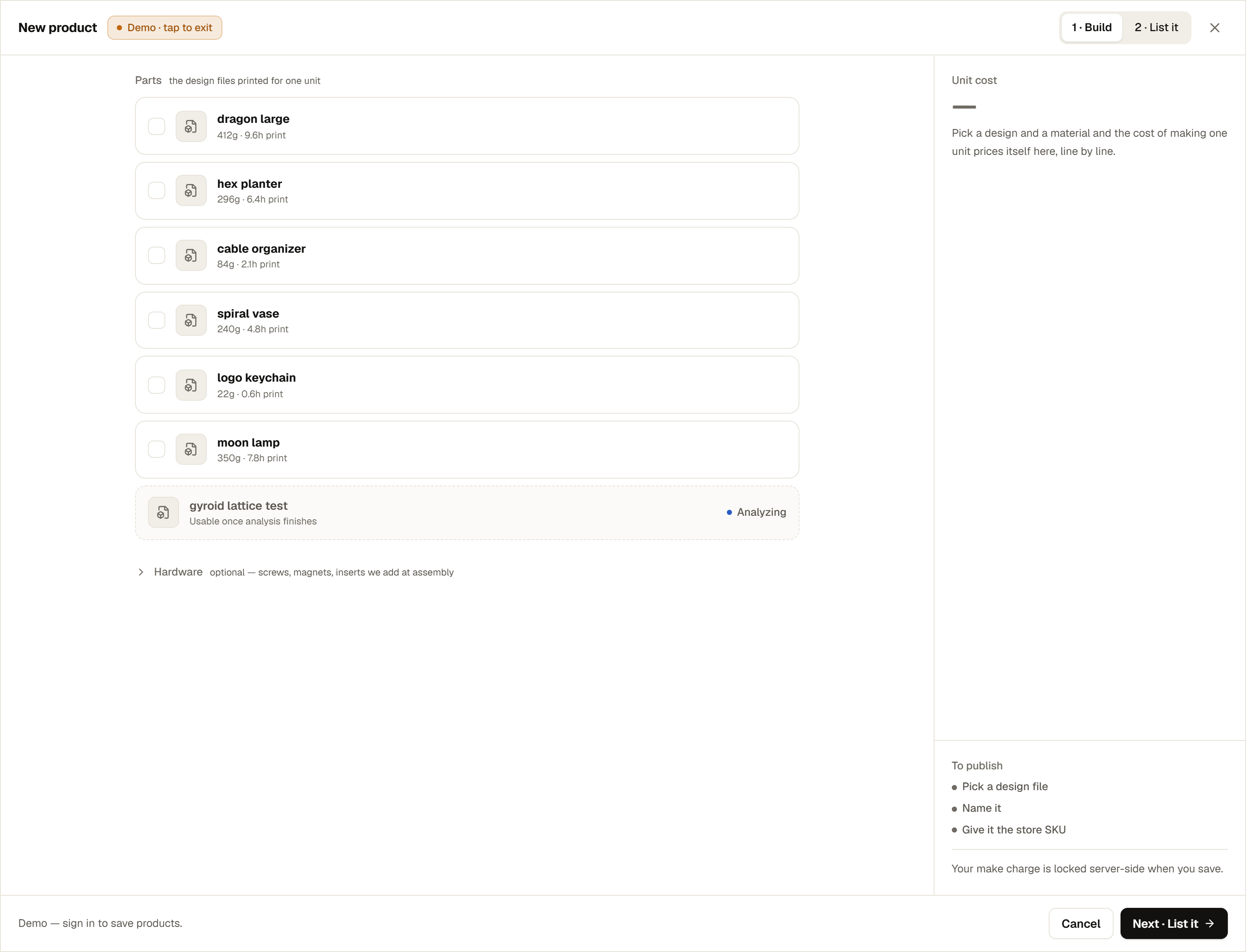
A product has no retail-price field, by design. PrintPort3D never stores the price your customer pays — that number lives on your store. What you see in the Composer is the make cost and a break-even figure, so you can price your store listing above it.
Every product is either Live or Draft. A Live product is eligible to match and fulfill incoming orders automatically. A Draft product is parked: an order for a Draft product does not auto-fulfill and waits for you to map it by hand.
Publishing only sets Live vs Draft
Store listings
A store listing is what your customer sees and buys: the product page on your Shopify, Etsy, Amazon, or other storefront. You write it, price it, and publish it using your own store’s tools.
PrintPort3D never creates or pushes a listing for you, and there is no “send to store” action anywhere in the product. To connect a listing to the product that should fulfill it, put your PrintPort3D product’s SKU on the store listing. That is the entire connection.
How SKU matching works
The SKU is the single code that connects a store listing to a PrintPort3D product. When an order arrives from your store, PrintPort3D looks for a product whose SKU matches the SKU on the ordered item. If it finds one, and that product is Live, the order fulfills automatically.
Two rules govern matching:
- Case and outer spaces are ignored. PrintPort3D compares SKUs in a canonical form: it uppercases both sides and trims leading and trailing spaces before comparing. As a result,
dragon-01,DRAGON-01, andDragon-01all match a product whose SKU isDRAGON-01. PrintPort3D stores and displays your product SKU in uppercase, but you do not have to reproduce that exact case on your store listing. - The characters must match. Beyond case and outer spacing, matching is character-for-character, with no fuzzy logic. A different character — an underscore in place of a hyphen, an extra space in the middle of the SKU, or a typo — is a different SKU and will not match.
Copy the SKU rather than retyping it
SKUs are also unique within your catalog: no two of your products can share one. A dedicated page covers this in full, including how to resolve a mismatch.
Next steps
Each of the three objects is documented in full on the pages below.