Order statuses
A complete reference for every order status, what each one means, and whether it requires action.
5 min read
Every order shows a single status: a colored dot and a plain-language label such as Printing or Payment declined. This page lists every status, explains what it means, and tells you whether it is yours to resolve or handled automatically.
How statuses are set
You never set a status manually. PrintPort3D derives each one on the server from where the order is in production and shipping, then displays it as a dot and a label on the Orders page (/orders). Statuses update automatically: when anything changes, your order book refreshes on its own.
The dot color indicates how much attention an order needs:
- Blue or green — the order is progressing on its own. No action is required.
- Amber or red — the order needs your attention. It appears under the Action required tab.
- Grey — the order is closed, either refunded or cancelled.
Statuses that do not exist
Automatic statuses
Most orders move through the following sequence automatically, from the moment a sale arrives to the moment it is delivered. Each status is informational: it reports where the order is and requires nothing from you.
The automatic lifecycle
| Status | What it means | Act? |
|---|---|---|
| Awaiting payment | The sale arrived and payment is being settled before anything prints. | No |
| Confirmed | Payment is authorized and the order is accepted. It is headed for the print queue. | No |
| Queued | The order is queued and lined up to print. | No |
| Printing | The order is printing. | No |
| Printed | Printing is complete; the order is being finished and prepared to pack. | No |
| Ready to ship | Made and packed, awaiting a shipping label and pickup. | No |
| Shipped | The order is in transit. The order row shows a tracking link. | No |
| Delivered | The carrier marked the order delivered. | No |
- Awaiting paymentWhat it meansThe sale arrived and payment is being settled before anything prints.Act?No
- ConfirmedWhat it meansPayment is authorized and the order is accepted. It is headed for the print queue.Act?No
- QueuedWhat it meansThe order is queued and lined up to print.Act?No
- PrintingWhat it meansThe order is printing.Act?No
- PrintedWhat it meansPrinting is complete; the order is being finished and prepared to pack.Act?No
- Ready to shipWhat it meansMade and packed, awaiting a shipping label and pickup.Act?No
- ShippedWhat it meansThe order is in transit. The order row shows a tracking link.Act?No
- DeliveredWhat it meansThe carrier marked the order delivered.Act?No
These statuses require no action
Statuses that require action
When an order cannot proceed on its own, its label changes to describe the problem and the order moves to the top of your Action required tab, sorted by the amount of money at stake. The table below lists every such status and what to do. A few require nothing from you and are included so you recognize them.
Problem, review, and closed statuses
| Status | What it means | What to do |
|---|---|---|
| Payment declined | Your saved card was declined when we tried to charge the make cost. | Open the order and tap Retry card. There is no automatic retry. |
| Label failed | The shipping label could not be purchased. | Open the order. Tap Try again to re-buy the label, or Fix address if the carrier rejected the address. |
| No product match | The order’s SKU does not match any product in your Catalog, so it cannot be made. | Tap Map product, select the correct Catalog product, and confirm. |
| Needs review | The order is held for a review only you can clear. | Open the order. The drawer shows the single required action or routes you to Support. |
| Reprinting | A print did not pass, so it is being remade automatically at no extra charge. | Nothing. This reports progress, not a failure. |
| Delivery problem | Something went wrong in transit to your customer. | Tap Get help with this to reach Support. There is no reship or address-fix button. |
| Refund / Replacement requested | A refund or replacement is under review by our team. | Nothing required. Add details with Get help with this if you wish. |
| Paused | The order is temporarily held. | Tap Get help with this. A person needs to review it. |
| On hold | The order is held for a manual check. | Tap Get help with this to reach Support. |
| Held for approval | You approve each order, and this one is waiting for your go-ahead. | Open the order and tap Approve. This charges your card and starts production. |
| Refunded | The order was refunded and is now closed. | Nothing. This order is complete. |
| Cancelled | The order was cancelled and is now closed. | Nothing. This order is complete. |
- Payment declinedWhat it meansYour saved card was declined when we tried to charge the make cost.What to doOpen the order and tap Retry card. There is no automatic retry.
- Label failedWhat it meansThe shipping label could not be purchased.What to doOpen the order. Tap Try again to re-buy the label, or Fix address if the carrier rejected the address.
- No product matchWhat it meansThe order’s SKU does not match any product in your Catalog, so it cannot be made.What to doTap Map product, select the correct Catalog product, and confirm.
- Needs reviewWhat it meansThe order is held for a review only you can clear.What to doOpen the order. The drawer shows the single required action or routes you to Support.
- ReprintingWhat it meansA print did not pass, so it is being remade automatically at no extra charge.What to doNothing. This reports progress, not a failure.
- Delivery problemWhat it meansSomething went wrong in transit to your customer.What to doTap Get help with this to reach Support. There is no reship or address-fix button.
- Refund / Replacement requestedWhat it meansA refund or replacement is under review by our team.What to doNothing required. Add details with Get help with this if you wish.
- PausedWhat it meansThe order is temporarily held.What to doTap Get help with this. A person needs to review it.
- On holdWhat it meansThe order is held for a manual check.What to doTap Get help with this to reach Support.
- Held for approvalWhat it meansYou approve each order, and this one is waiting for your go-ahead.What to doOpen the order and tap Approve. This charges your card and starts production.
- RefundedWhat it meansThe order was refunded and is now closed.What to doNothing. This order is complete.
- CancelledWhat it meansThe order was cancelled and is now closed.What to doNothing. This order is complete.
Five actions in the order drawer
- Retry cardPayment declined
- Re-runs your saved card to charge the make cost. There is a short cooldown between attempts.
- Map productNo product match
- Matches the unrecognized item to a Catalog product. It charges your card, starts production, and remembers the match for future orders.
- ApproveHeld for approval
- Charges your card and sends the order to production. Appears only when you approve each order.
- Request refundRefunds
- Submits a reason for our team to review. You do not set the amount or type — see Refunds & replacements.
- Get help with thisEverything else
- Opens a Support ticket tied to this order. This is the action for Delivery problem, Paused, On hold, and generic reviews.
Where statuses appear in your order book
The Orders page is exception-first: it sorts orders so the ones that need you are impossible to miss. Every status on this page falls into exactly one tab, each with a live count.
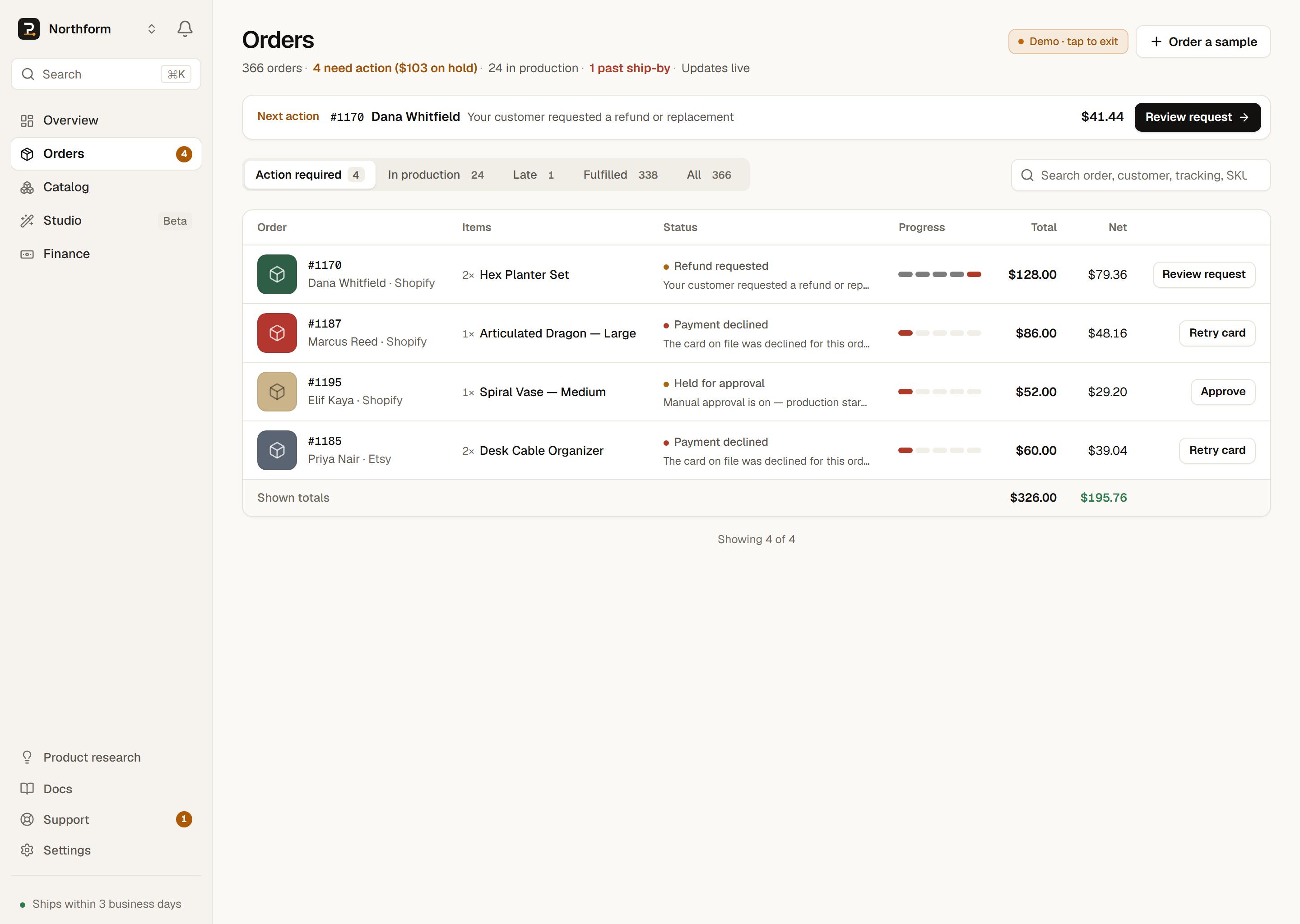
- Action required — every red or amber status from the second table. This is your to-do list.
- In production — the automatic path: Confirmed through Ready to ship, plus Reprinting.
- Late — appears only when an open order has passed its ship-by promise, an internal 72-hour (3-day) window, or 48 hours for TikTok Shop orders. It reflects timing rather than a status of its own — see Tracking & delivery.
- Fulfilled — Shipped, Delivered, Refunded, and Cancelled.
- All — every order in one list.
Approve-each mode changes the flow