Finance
A read-only view of your running profit-and-loss and every card charge PrintPort has settled.
6 min read
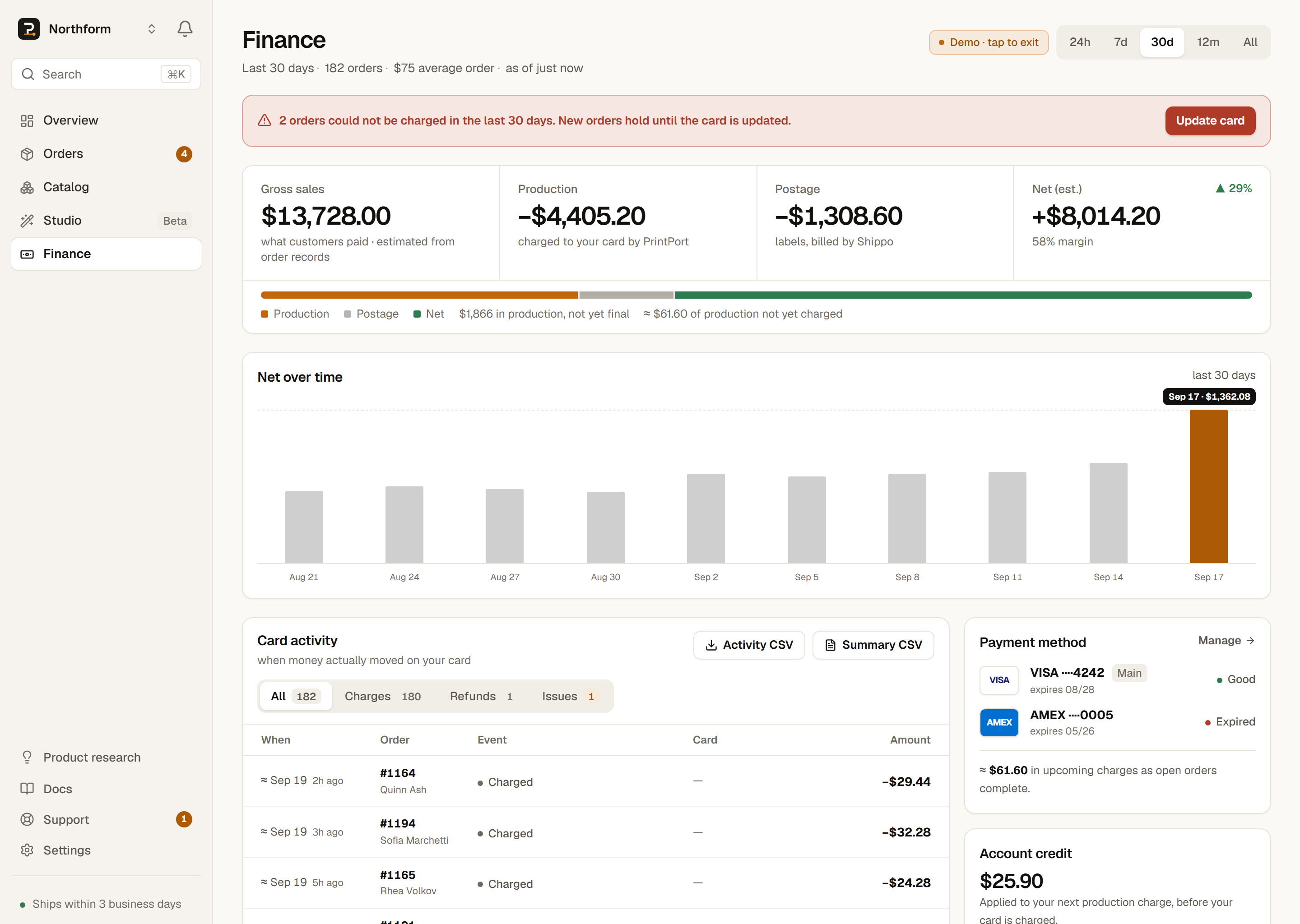
Finance answers two questions: whether you are making money, and what PrintPort has charged your card. It is a read-only view of your own orders, with a live profit-and-loss summary at the top and a line-by-line ledger of every settled charge, refund, and decline below. PrintPort calculates every figure; you never add anything up by hand.
The statement
The top of the page is a statement for the window you are viewing, read left to right the way a profit and loss reads: Gross sales, Production, Postage, and Net (est.). Above it, the facts line gives the window, the order count and the average order.
Net ≈ gross sales − production − postage.
- Gross salesestimate
- The total your customers paid you, summed from your order records. This is an estimate — the order total your marketplace reported, not a settled payout — so the page labels it “est.” You collect this amount yourself, through your own store.
- Productionyour card
- The make cost PrintPort charged to your card for those orders: material plus labor (at least $2.00 per order).
- PostageShippo
- Shipping labels, bought on your own connected Shippo account and billed by Shippo — not on your PrintPort card.
- Net (est.)
- Gross sales minus production and postage, with your margin beneath it and, where a fair comparison exists, the change versus the prior window. Refunds count on the cost side, so a refunded charge raises your net. When costs exceed sales for the window, this figure renders in red.
A proportion bar under the statement splits your sales into Production, Postage, and Net. Beside its legend, the value of orders still in production is shown as “not yet final”. When net is negative, a “review pricing” link points to your below-cost products in the Catalog.
Why revenue is labeled “est.”
Time windows and the trend chart
Tabs at the top set the time window: 24h, 7d, 30d, 12m, and All. The default is 30 days. Each is a trailing window — “last 30 days,” not “this calendar month.” The selected window is stored in the page’s address, so the view is refresh-stable and you can bookmark or share it.
Changing the window re-scopes the summary, the trend chart, the card ledger, and the “By channel” table together. When a matching prior period exists to compare against, a delta chip shows whether you are up or down. The chip appears only when the prior window had at least three orders, so a large swing off a small base never misleads you, and it is hidden on the “All” view.
Net over time
Below the summary, a bar chart plots your net profit across the window — a handful of buckets for a short range, up to twelve calendar months for 12m and All. Profitable buckets rise above the zero line, and loss buckets render as red bars below it. Click, tap, or keyboard-focus any bar to reveal its label and exact net amount; the detail is not hover-only.
The card activity ledger
Beneath the chart, Card activity lists every real movement on your card. Only settled money appears here. A temporary authorization — the hold PrintPort places before buying your shipping label — is not a charge and never appears. Your card is charged at label purchase, which is the moment a charge lands in this list.
Holds and authorizations are excluded from the ledger; they are not money that moved.
| Row | What it means | What to do |
|---|---|---|
| Charge | A make-cost charge that captured successfully after the label bought. | Nothing; it worked. |
| Refund | PrintPort refunded a make-cost charge back to your card. | Nothing; money came back. |
| Declined | “Tried $X — nothing was charged.” The card was declined. | Open the order and Retry card. |
| Refund failed | “$X didn’t make it back.” A refund could not reach your card. | Get help with the order. |
- ChargeWhat it meansA make-cost charge that captured successfully after the label bought.What to doNothing; it worked.
- RefundWhat it meansPrintPort refunded a make-cost charge back to your card.What to doNothing; money came back.
- DeclinedWhat it means“Tried $X — nothing was charged.” The card was declined.What to doOpen the order and Retry card.
- Refund failedWhat it means“$X didn’t make it back.” A refund could not reach your card.What to doGet help with the order.
Each row is clickable and opens that order on the Orders page so you can act on it. A declined row carries a “Retry from the order →” link to that order’s Retry card button, which is the only way to re-run a failed payment. There is no automatic retry; see When a payment fails.
The ledger has filter tabs — All / Charges / Refunds / Issues — that appear once you have more than one kind of movement. It shows 12 rows initially, with a “Show all” button to expand and a footer that totals the visible period. When refunds outweigh charges in a window, the footer shows “net back to you.”
Rows marked with ≈
Profit by product and by channel
Two tables turn your orders into margins so you can see what is working.
- Profit by productall-time
- Your top products ranked by estimated profit. This table is always all-time, regardless of the window you have selected — an “all-time” chip flags it — because a stable estimate needs every past sale. Each row estimates profit as your observed retail (the median price across your real past order line items) times units sold, minus the make cost and an average label. A row earns a “below cost” badge when that observed retail is lower than the cost to make and ship it. Click any row to open the product in your Catalog.
- By channelfollows the range
- The same profit view grouped by where the order came from, such as Shopify or Etsy. This table follows your time window. Click a channel to open those orders, pre-filtered.
These margins are estimates
Exporting your data
Two buttons download your data as CSV, both scoped to the window you are viewing:
- Activity CSV — every row of the card-activity ledger. When the range holds more events than the export can carry, it adds a clearly marked warning row telling you to narrow the range.
- Summary CSV — the full picture: your P&L, the net-over-time series, and the product and channel margin tables in one file. Use this for a spreadsheet at month-end.
What these numbers do and do not represent
Finance is explicit about its limits. Keep these three caveats in mind so you read it correctly.
- Gross sales is a proxy. It is your marketplace order total, not a settled storefront payout. It is always an estimate and always marked “est.”
- Everything is treated as USD. Order records do not carry a currency, so a non-dollar total is summed as if it were dollars. There is no conversion; if you sell in another currency, read these figures accordingly.
- The scan stops at 1,000 orders. The page builds its numbers from up to 1,000 of your orders. Beyond that, the summary notes it was “built from 1,000 scanned orders — older history may be missing,” so you know the totals are a large sample rather than every order ever placed.
Card trouble surfaces here first
The page also shows your PrintPort credit balance, granted by support for reprints and goodwill. It is displayed for reference; nothing in the charge path spends it automatically. To apply credit to an order, email support@printport3d.com.