Manage your catalog
Edit products and designs, switch between Live and Draft, and remove items without affecting your order history.
5 min read
The Catalog is where all of your products and designs live. From this page you edit a product, switch it between Live and Draft, and remove items you no longer sell. PrintPort3D protects anything an order has referenced, so deleting is safe by design.
The Catalog page
Open Catalog from the workspace sidebar. Its route is /products. The page has two tabs, each with a running count.
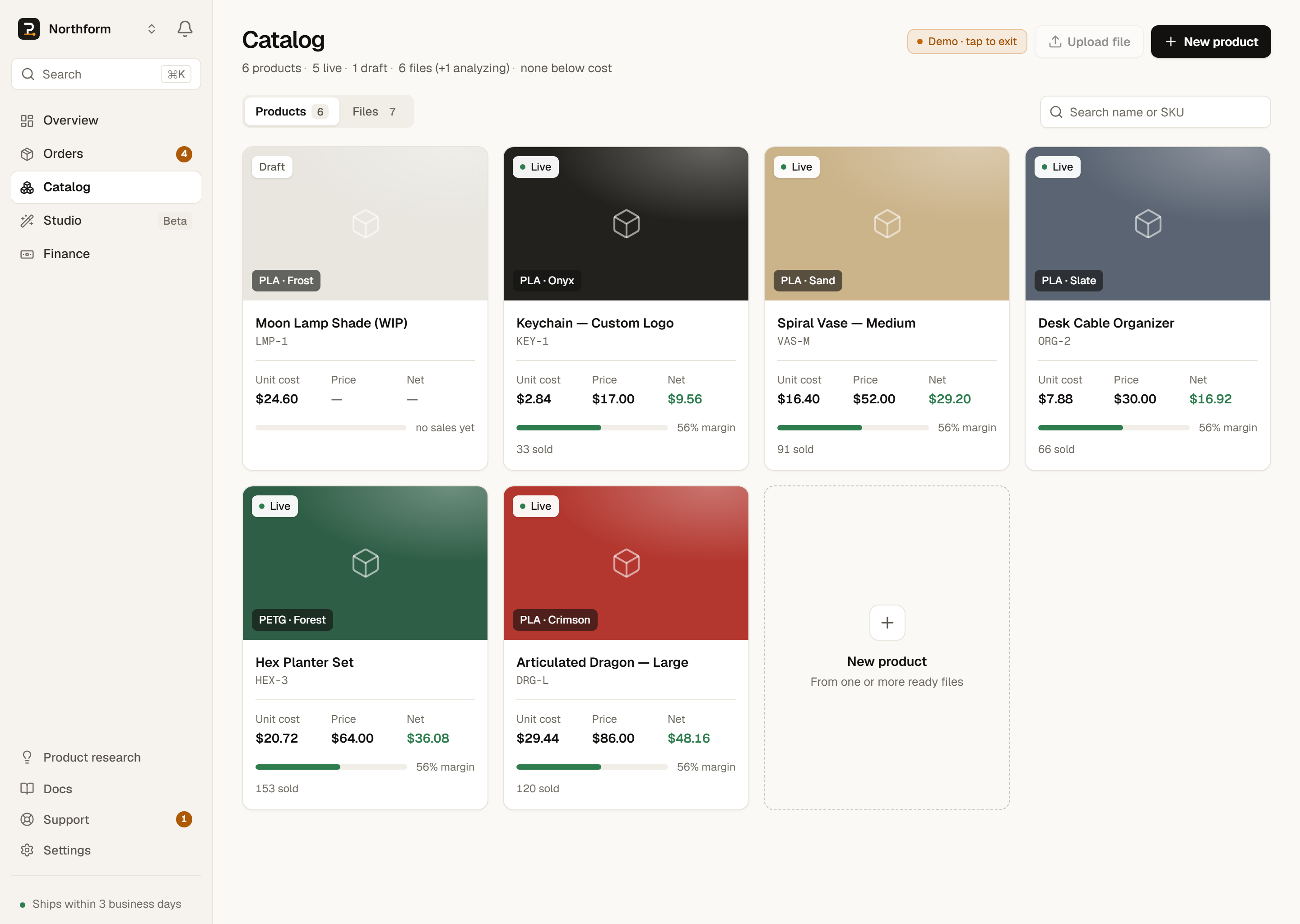
- Products are your priced, sellable units, each with a SKU. Click any product card to open it.
- Files holds the raw 3D files you have uploaded or generated, before they become products.
A search box narrows whichever tab you are on. On Products it filters by product name or SKU; on Files it filters designs by name.
The stat strip
A strip of four live counts runs across the top of the Catalog. The counts refresh automatically as orders arrive and products change, so you do not need to reload.
- Liveproducts
- The number of products that are published and eligible to fulfill orders automatically.
- Draftsproducts
- The number of products parked as drafts. A draft does not auto-fulfill.
- Designsfiles
- The number of 3D files in your Files tab.
- Below costalert
- The number of Live products that appear under-priced on your store. When this is above zero, the strip turns amber and offers a show them toggle that filters the list to only those products. Show all clears the filter.
How Below cost is calculated
Open a product
Click a product card to open its drawer. The drawer is the control panel for a single product, where every edit, status change, and deletion happens. Alongside its sales figures, the drawer provides four actions.
- Copy SKU
- Click the SKU to copy it to your clipboard. This is the reliable way to get the exact characters onto your store listing: copy it here and paste it there. Matching ignores case and leading or trailing spaces, so you do not have to preserve the uppercase form, but copying still prevents a typo.
- Publish / Move to draft
- A single toggle that switches the product between Live and Draft. You can switch it as often as you like.
- Edit
- Reopens the product in the composer, where you can change its files, copies, materials, hardware, name, or description. Saving recalculates the make cost from scratch.
- Delete
- Removes the product after a Really delete? confirmation. The exact behavior depends on whether an order has ever used the product, described below.
The drawer shows product performance
Live and Draft states
Every product is either Live or Draft. Only a Live product fulfills orders on its own.
Live products auto-fulfill; drafts do not.
| State | What it means | When an order arrives |
|---|---|---|
| Live | Published and active. Eligible for automatic SKU matching. | If the SKU characters match, the order fulfills on its own. |
| Draft | Parked. Still editable, but excluded from automatic matching. | The item lands unmatched and waits for you to map it by hand. |
- LiveWhat it meansPublished and active. Eligible for automatic SKU matching.When an order arrivesIf the SKU characters match, the order fulfills on its own.
- DraftWhat it meansParked. Still editable, but excluded from automatic matching.When an order arrivesThe item lands unmatched and waits for you to map it by hand.
For an order to fulfill automatically, its product must meet every one of these conditions: it is Live rather than a draft, it is not archived, and the SKU on the ordered item matches the product’s SKU. SKU matching ignores case and leading or trailing spaces, but the characters themselves must line up. If any condition fails, the item arrives as unmatched, which is a fixable situation rather than a lost order. See Fix order problems for the manual mapper.
You set the status in two places.
- 1
When you save
In the composer, Save & publish makes the product Live, and Save as draft keeps it as a draft. - 2
Any time after
Open the product drawer and use the Publish / Move to draft toggle.
Nothing in account setup gates going Live
What the connections actually control
Publishing does not touch your store
Deleting a product
Deletion is deliberately conservative. When you confirm Really delete?, PrintPort3D checks whether any order has ever referenced the product, then takes one of two actions.
Deletion archives anything an order has touched; only zero-reference products are removed.
| If the product is… | What happens | Your order history |
|---|---|---|
| Referenced by any order | Soft-archived: hidden from your Catalog, marked as a draft, and set inactive. It is not erased. | Fully protected. Past orders keep every detail. |
| Never used by an order | Hard-deleted: removed permanently. | Nothing to keep, so nothing is lost. |
- Referenced by any orderWhat happensSoft-archived: hidden from your Catalog, marked as a draft, and set inactive. It is not erased.Your order historyFully protected. Past orders keep every detail.
- Never used by an orderWhat happensHard-deleted: removed permanently.Your order historyNothing to keep, so nothing is lost.
Because of this, removing an old product never corrupts your analytics or a customer’s record. Anything with order history behind it is archived instead of destroyed.
Archived products cannot be edited or restored
In one rare case, a product tied to a very large number of orders is refused with a “too many order references to delete safely” message rather than risk a partial change. If you encounter this, move the product to Draft instead. It stops auto-fulfilling and drops out of your active list. For further help, contact us through Get help with this.
Deleting a design
Designs live on the Files tab, and each row has a trash button. A design that nothing depends on deletes cleanly. A design that is still in use does not.
Two conditions count as in use, and either one blocks the delete.
- The design is part of a product. The server refuses the delete and names the products using it. Remove the design from those products first.
- The design is referenced by an order. A design attached to any past order is retained so your history stays intact.
The server enforces the guard, not the button