Tracking & delivery
What tracking data PrintPort provides, how the internal ship-by promise works, and how to set delivery expectations you can meet.
5 min read
When an order ships, PrintPort provides a tracking number, a link to the carrier’s own tracking page, and a Delivered flag that updates automatically. There is no scan-by-scan feed inside the app. This page describes exactly what tracking data you receive, what the internal ship-by promise means when an order runs late, and how to communicate accurate delivery expectations to your customers.
What tracking includes
Tracking in PrintPort is intentionally minimal. A shipped order carries three pieces of tracking data and nothing more:
- Tracking numberper order
- The carrier’s code for the package. It is also searchable: the Orders search box matches order number, customer, channel, item, and tracking number.
- Carrier link
- A link to the carrier’s own tracking page. Opening it launches that page in a new tab, where the carrier displays whatever checkpoints it has.
- Delivered flag
- PrintPort sets the order to Delivered when the carrier reports the package as delivered, even if the status was still reading “Shipped” moments before.
There is no in-app scan feed
The tracking link appears in three places:
- 1
On the order row
Open Orders. On a shipped order’s row, the tracking number is a link. Selecting it opens the carrier’s page in a new tab. - 2
In the order drawer
Open the order to reveal the drawer. The Shipping section shows the delivery address and a tracking link (a small truck icon) that opens the same carrier page. - 3
Through search
Paste a tracking number into the search box to jump directly to that order.
A Shipped status is reliable
The order journey
Each order drawer includes a Timeline, a short list of milestones rather than carrier scans. It records the real moments in the order’s life:
- 1
Placed
The sale arrived from your store. - 2
Payment confirmed
Your card was charged the make cost and the order was confirmed. - 3
Production started
The product entered the print queue and began being made. - 4
Packed
The product was finished, any hardware was installed, and it was boxed. - 5
Shipped
A label was purchased and the box left the warehouse via the carrier. - 6
Delivered
The carrier reported the package delivered. If the order was refunded or cancelled, the Timeline ends at that point instead.
Only milestones that have actually occurred appear. The Timeline fills in as the order moves, so it never displays a step it cannot verify. Before an order ships, the Timeline also shows a ship-by line: the target date from the promise described below.
How orders ship
You do not choose a carrier, a speed, or any add-ons. PrintPort handles shipping the same way on every order:
- Ships from Orange, California. Every box leaves PrintPort’s warehouse, not your address. The return address on the label is PrintPort’s.
- Lowest USPS rate, automatically. PrintPort selects the cheapest USPS rate for the package. TikTok Shop orders are the exception: TikTok Shop rejects USPS labels bought outside TikTok Shipping, so they ship on the cheapest UPS rate, usually the same price. There is no carrier override and no shipping-speed picker in Orders.
Services this flow does not include
The label is paid for differently depending on order type. On marketplace orders it bills to your connected Shippo account, separately from the card charge. On custom orders your buyer prepaid it. See How you get paid.
What counts as late
PrintPort holds itself to a 72-hour (3-day) ship-by promise, measured from when an order is placed to when it ships. This is an internal deadline about production speed. It is not a carrier delivery date and says nothing about when the package arrives. TikTok Shop orders are held to 48 hours, because TikTok requires a carrier scan within two business days; they ship on UPS.
In your Orders book, that window appears on the order row as one of three states:
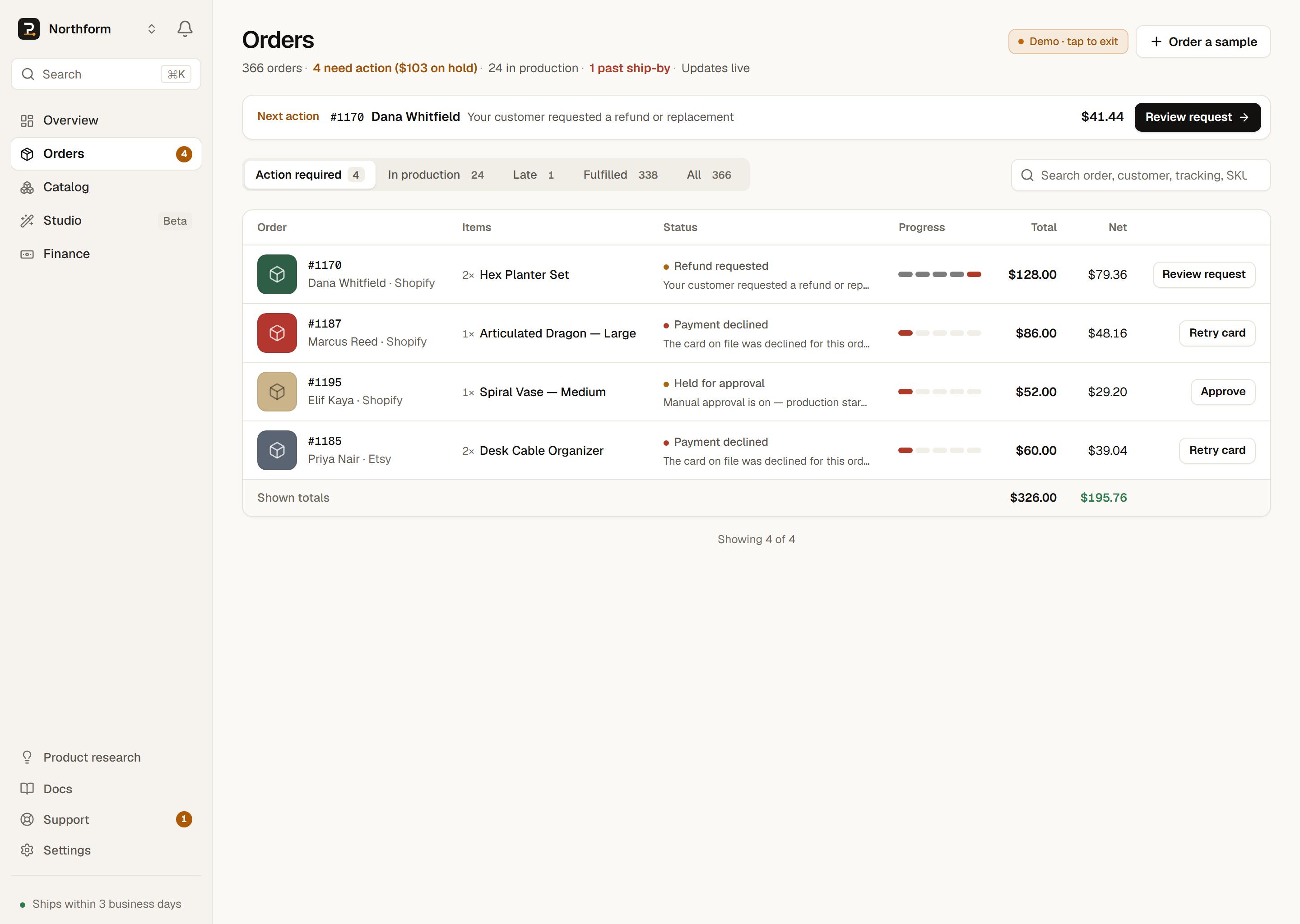
The three delivery-window states, derived from the internal 72-hour ship-by SLA.
| Window state | What the row shows | Do you act? |
|---|---|---|
| On track | Ships <date> — comfortably inside the window | No |
| At risk | ~<date> — nearing the deadline (around 50 hours in, ~70% of the window) | No |
| Late | Late — past the 72-hour promise; a Late tab appears so these are easy to find | Usually no |
- On trackWhat the row showsShips <date> — comfortably inside the windowDo you act?No
- At riskWhat the row shows~<date> — nearing the deadline (around 50 hours in, ~70% of the window)Do you act?No
- LateWhat the row showsLate — past the 72-hour promise; a Late tab appears so these are easy to findDo you act?Usually no
Late orders are rarely your responsibility
Because the promise is measured to shipment, an order can be on track and still be a few days from your customer’s door. USPS transit happens after the ship-by clock stops.
Setting delivery expectations
Because there is no in-app scan feed and no signature or insurance on this flow, communicate only what you can reliably deliver. A fair framing:
- Handling time: PrintPort aims to ship within about five days of the order. Present this as a target and add USPS transit on top.
- Tracking: a USPS tracking number once the order ships, viewable on the carrier’s own page.
- Do not promise a guaranteed arrival date, signature delivery, or insured or expedited shipping. None of these exist in this flow.
Lost, damaged, or wrong-address deliveries route to Support
Shipping updates reach you in two ways. Your Orders book refreshes live, so a shipped or delivered order updates on its own without a reload. In addition, order and shipping alerts are sent by email (on by default) and mobile push; the in-app bell today carries only Studio design-completion notices. Manage these in Notifications.