When a payment fails
What a declined card means for an order, and the steps to recover it.
4 min read
When PrintPort tries to charge your card and the charge is declined, the order pauses and waits for you. Nothing prints, and nothing is charged. This page explains what a declined card looks like and the two steps that get the order moving again.
What a declined card means
When PrintPort makes an order, it charges your card the make cost — material plus labor, at least $2.00 per order. If that charge does not go through, the order stops and shows Payment declined in your Orders book, under the Action required tab. PrintPort surfaces it there because only you can resolve it.
Two facts are worth knowing right away:
- Nothing was charged. PrintPort places a hold before it buys anything. The hold was declined, so no money moved and no label was bought. A declined order is a stopped order, not a partial charge.
- Every card was tried. If you have more than one card on file, PrintPort tries your main card first, then the others, newest first. You see Payment declined only when all of them fail, so a single bad card among several will not stall an order on its own.
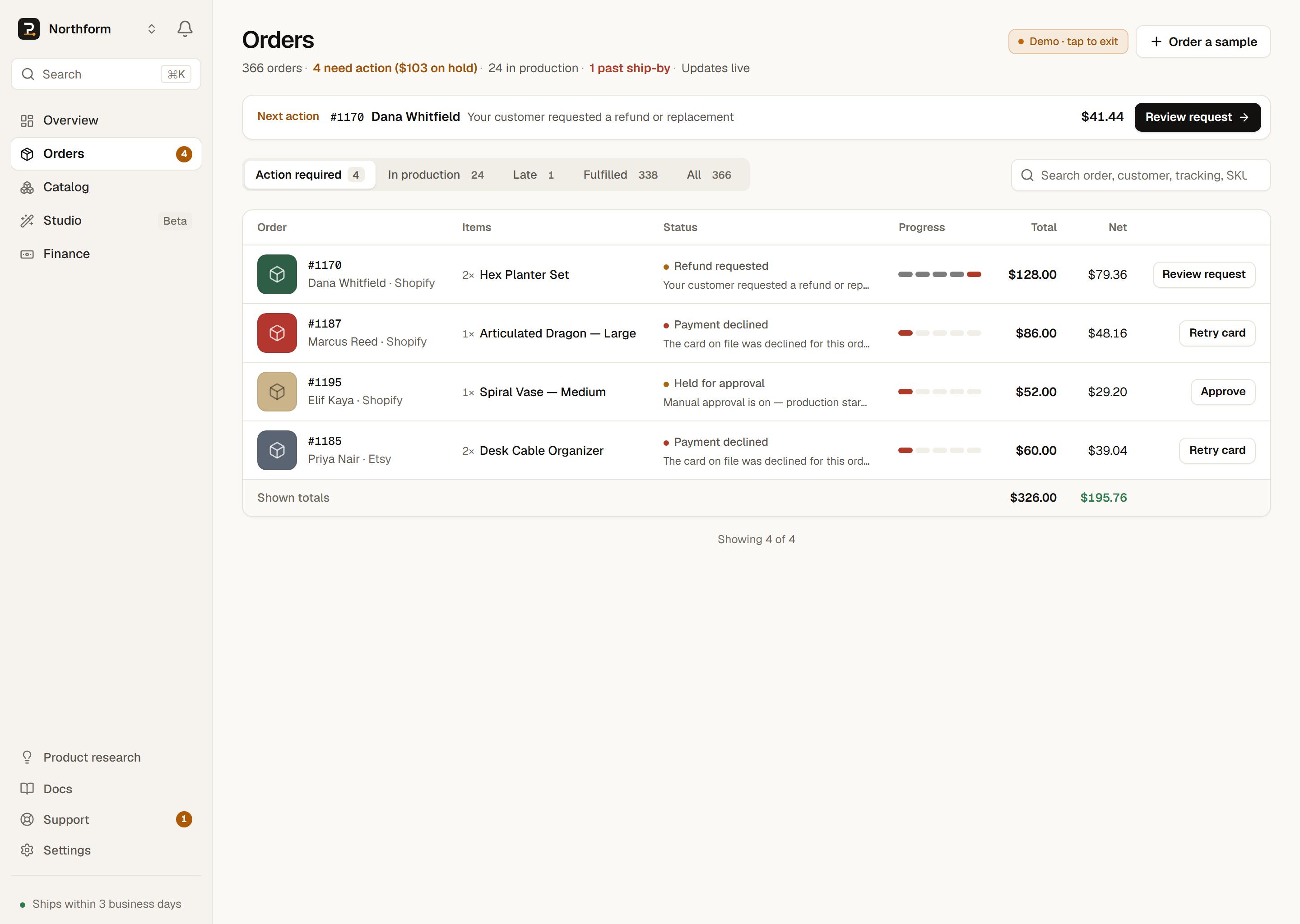
A card usually declines because it expired, there were not enough funds, or the bank blocked the charge. PrintPort cannot see which reason applies, so the fix is the same in every case: correct the card, then retry the order.
Watch for expiry warnings before a card declines
Retries are manual
A declined order does not retry automatically, and PrintPort does not chase it in the background.
There is no automatic retry
PrintPort will not re-run a declined charge on a timer. There is no 4-hour or 24-hour auto-retry. The order waits for you.
Saving a new card does not retry the order either. Adding a working card fixes what gets charged next time, but it does not re-attempt any order that already declined. Recovery is always a deliberate, per-order action you take.
Recovery is two steps, in this order: fix the card, then retry the order. Reversing the order means the retry declines again against the same broken card.
Step 1 — Fix your card
Go to Settings → Billing first. This is where your saved cards live and where you repair whatever caused the decline.
- 1
Open Settings → Billing
You can jump straight there from your Finance page. Its Update card link scrolls you directly to Billing. - 2
Add or update a working card
Add a new card, or remove the one that is failing. If you add a new card, use Make main to put it first in line for charges. The full walkthrough is in Manage payment cards. - 3
Confirm the card is healthy
Each card row shows its brand, last four digits, expiry, and a status dot: Good, Expiring soon, or Expired. Confirm the card you will retry against reads Good.
Adding a card requires a verified email
Step 2 — Retry the order
With a good card in place, return to the declined order and run it again. The Retry card button is on the order itself.
- 1
Open the order
In Orders, find the Payment declined order under Action required and tap it to open the drawer. - 2
Tap Retry card
The drawer shows a Retry card button with a short preview of what it will do, including the amount at stake. Confirm it. - 3
The full charge re-runs
Retrying runs the full sequence again from the start: place a hold on your card, buy the shipping label, then capture the charge. Your card is charged only if the entire sequence succeeds. If the card declines again, nothing is charged and the order stays Payment declined.
A retry is all-or-nothing. It charges only on a clean, successful run.
| Result | What happens |
|---|---|
| It works | The order moves on to production, and your card is charged the make cost — material plus labor. |
| Declined again | Nothing is charged. The order stays “Payment declined.” Recheck the card and try once more. |
| Too soon | There is a short cooldown between retries. Wait a few minutes, then the button works again. |
- It worksWhat happensThe order moves on to production, and your card is charged the make cost — material plus labor.
- Declined againWhat happensNothing is charged. The order stays “Payment declined.” Recheck the card and try once more.
- Too soonWhat happensThere is a short cooldown between retries. Wait a few minutes, then the button works again.
Retrying cannot double-charge you
The retry charge is the make cost only. The shipping label is not on it. The label bills to your own connected Shippo account separately, exactly as it does on a normal order. See How billing works for the full breakdown.
When a card keeps failing
A single decline is usually a one-off. A repeated pattern is not, and PrintPort will flag it.
Repeated declines raise a banner
If you have added a good card and an order still will not go through, the cause may be something PrintPort cannot clear on its own, such as an unusually large charge held for review. In that case, use Get help with this on the order to reach Support.