How it works
A complete walkthrough of the PrintPort3D pipeline, from a customer's purchase to a shipped order.
5 min read
PrintPort3D is print-on-demand for 3D-printed products. You list a design on your own store, and when someone buys it, we produce it and ship it. You never operate a printer and you never hold inventory.
Overview
You connect a store and list a product with a SKU. A customer buys on your store and pays you. The order syncs to PrintPort3D, we charge your card the make cost, then print, pack, buy the shipping label, and ship it. Tracking returns to the order. You keep the difference between what your customer paid and what it cost to make and ship.
Two facts frame everything that follows. First, all orders arrive through a single path: your store connects to Shippo, and PrintPort3D reads your orders from Shippo. There are no direct marketplace integrations, so every channel you sell on comes in the same way. Second, there is no payout. Your customer pays you through your store, and PrintPort3D charges your saved card to make each order. Money moves in only one direction between you and PrintPort3D.
Orders require Shippo
One-time setup
Two steps are done by hand before automated fulfillment begins. You complete them once per store and once per product.
- 1
Connect your store through Shippo
Link Shippo to PrintPort3D with a single sign-in, then attach your storefront inside the Shippo dashboard at apps.goshippo.com. PrintPort3D supports 11 platforms: Shopify, Etsy, Amazon, TikTok Shop, eBay, Walmart, WooCommerce, Wix, Squarespace, Magento 2, and BigCommerce. This step is what wires your orders in. - 2
List a product with its PrintPort3D SKU
In your Catalog, turn a design into a priced product that carries a SKU. Then create the listing on your own store and apply that exact SKU to it. PrintPort3D does not create or push listings for you. You create the listing, and PrintPort3D reads its SKU.
The SKU is the only join
dragon-01, DRAGON-01, and Dragon-01 all match a product whose SKU is DRAGON-01. The characters themselves must still match: an underscore in place of a hyphen, an extra space in the middle, or any typo produces a different SKU that will not match. PrintPort3D displays and stores your product SKU in uppercase, but you do not need to copy that exact case onto your store listing. See The SKU link.What happens on every sale
Once your store and a listing are live, each sale runs automatically. The following is the full path from a customer’s purchase to a shipped parcel.
- 1
Your customer buys and pays you
The customer checks out on your store and pays your price directly to you, through your own payment setup. PrintPort3D is not part of that transaction. - 2
The order syncs from your store to PrintPort3D
Your store passes the order to Shippo, and PrintPort3D reads it from there. It appears in your Orders book automatically. - 3
You approve it, or it proceeds automatically
Automatic fulfillment is off by default, so new orders wait as Held for approval until you select Approve. Turn automatic fulfillment on and matched orders enter production the moment they arrive. In either case, approval starts the rest of the process. See Automatic vs manual. - 4
We charge your card the make cost
PrintPort3D places a hold on your saved card for the production cost, then captures it when the shipping label is bought. The charge occurs at label purchase, not at order placement, and covers material and labor only. Shipping is not included. See How billing works. - 5
We print, finish, inspect, and pack it
Your product goes onto the machines and moves through production. You can follow it as Queued Printing Printed, during which it is cleaned, quality-checked, and packed. - 6
We buy the label and ship it
For a marketplace order, the label is bought on your own connected Shippo account. PrintPort3D selects the cheapest USPS rate and ships from the warehouse in Orange, CA. The order becomes Ready to ship then Shipped. - 7
Tracking returns and you keep the difference
The tracking number and carrier link are added to the order. When the carrier marks the parcel delivered, the order shows Delivered. What remains after the make cost and the label is your profit.
How the money works
There is no payout, no escrow, and no wallet. Your customer pays you on your store, PrintPort3D charges your card to make the order, and your profit is what remains.
- What your customer pays youyour store
- Whatever you priced the listing at, collected through your own store. PrintPort3D never stores your retail price. The “observed retail” shown in the app is an estimate: the median of your past order line items.
- Make costyour card
- What PrintPort3D charges your saved card to produce one order: material (real inventory price per gram × sliced weight) plus labor at $3 per print-hour, pro-rated under an hour. Hardware parts add their part price with no labor, and assembly, when you choose it, adds $1.00 per part. Every order is billed at least $2.00 to make. See Costs & pricing.
- Shipping labelyour Shippo
- On a marketplace order, the label bills to your own connected Shippo account, not to the card charge, which covers the make cost only.
Net profit ≈ what your customer paid you − make cost − shipping label. The first amount arrives in your own store payouts, the second is the charge on your PrintPort3D card, and the third bills to your Shippo account. Your Finance page totals all three (customer totals are labeled an estimate, since your store’s totals arrive as a proxy).
Custom orders work differently
Handling exceptions
The Orders page is exception-first. Most orders flow through on their own, and the page surfaces the small number that need your attention, sorted by what is at risk. Tabs divide them into Action required, In production, Late, Fulfilled, and All.
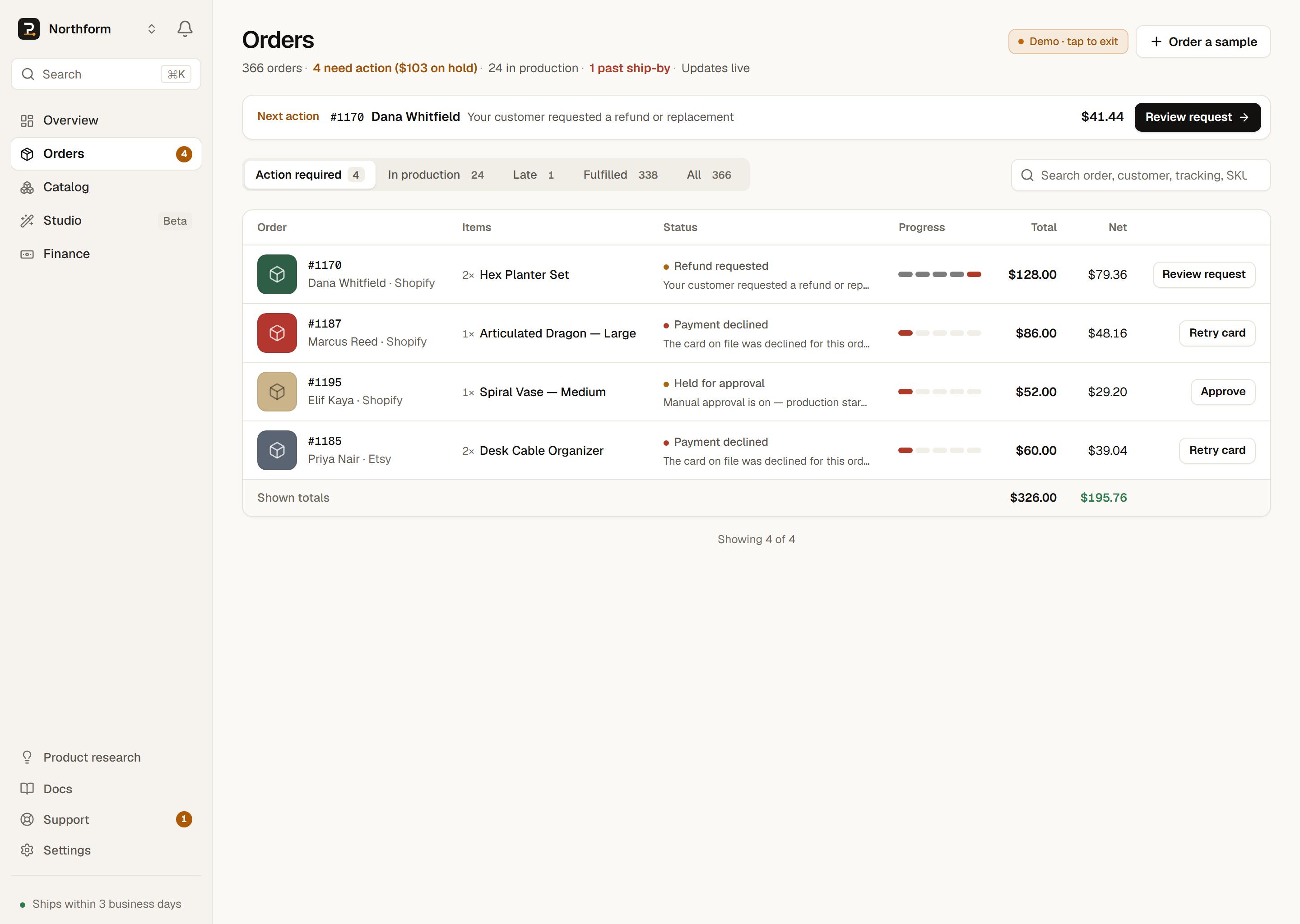
When an order needs you, it shows a plain-language problem chip, such as Payment declined or No product match, and offers one of exactly five actions:
- Retry card re-runs a declined charge. There is no automatic retry; you trigger it.
- Approve starts production on an order waiting for your approval.
- Map product points an unmatched line item at the right product and teaches future matches.
- Request refund sends a review-based refund or replacement request for an admin to approve.
- Get help with this hands a delivery, address, or quality problem to Support.
There is no in-app control to edit an address, cancel, or reprint; those route to Support. For the full list of status labels and their meanings, see Order statuses. For how tracking and delivery windows work, see Tracking & delivery.
Next steps
Each stage of the pipeline has a dedicated concept page. Continue with whichever part you want to understand next.