Automatic vs manual
Choose whether store orders print on their own or wait for your approval, and when your card is charged in each case.
4 min read
A single setting controls whether a new sale prints automatically or waits for you to approve it. The same setting determines when your card is charged. This page explains what each mode does and how to choose between them.
The setting
The setting is Make orders automatically, in the Fulfillment section of Settings. It is a single toggle with two states:
- Off — you approve each order before it is made. Settings reads “You approve each order.”
- On — paid orders print automatically. Settings reads “Orders make automatically.”
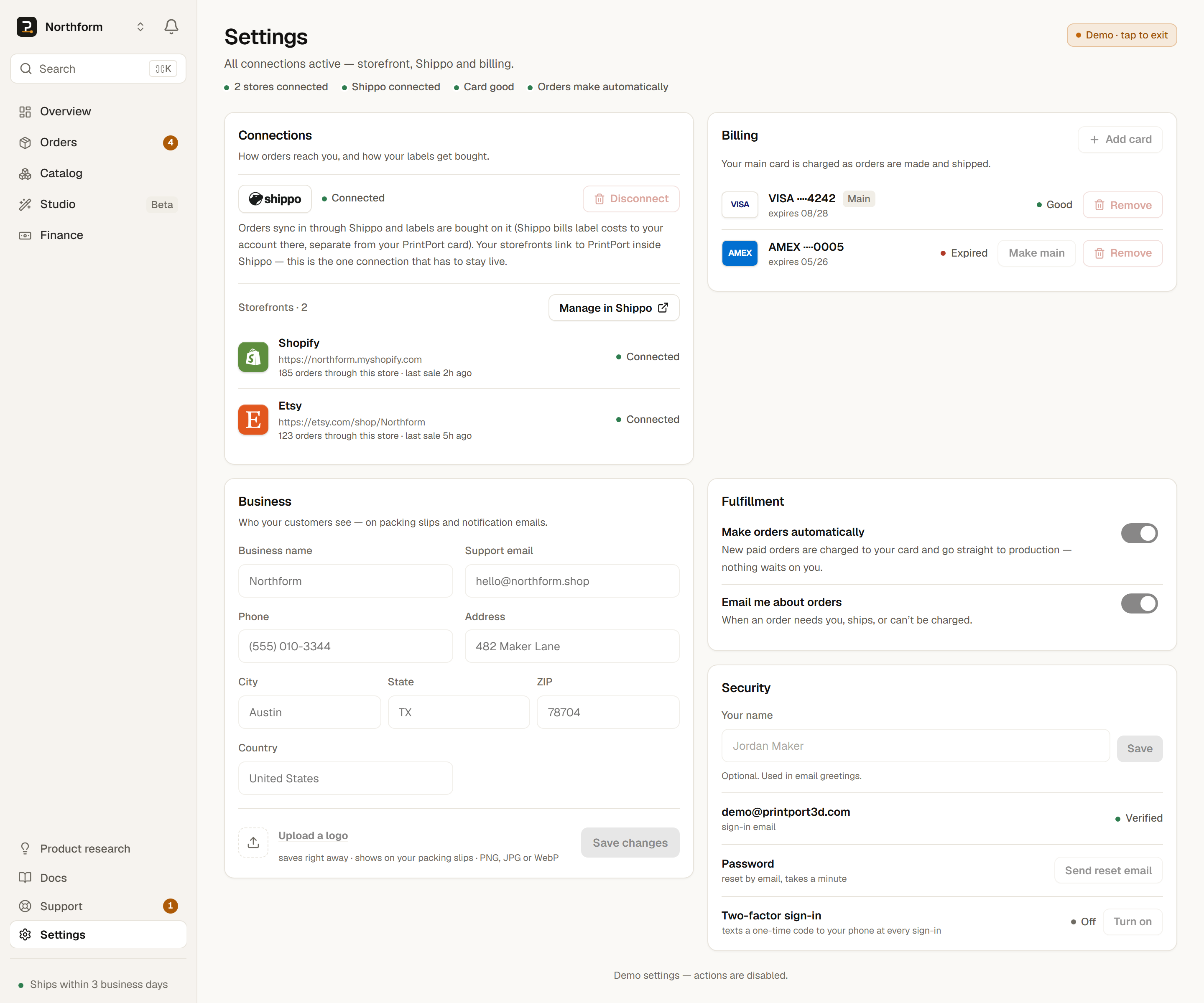
The toggle is off by default. Until you turn it on, every new order waits for you. Nothing prints and nothing is charged without your approval.
This applies to store orders only
Manual approval (default)
With the toggle off, a new paid order arrives in your Orders book as Held for approval and stops there. It appears under Action required. Nothing is printed and your card is not charged until you approve it.
- 1
Open the order
In Orders, find the order marked Held for approval under Action required and tap it to open the drawer. - 2
Tap Approve
The drawer shows an Approve button with a preview of what it will do, including the amount you will be charged. Confirm it. - 3
The order charges and prints
Approving charges your card the make cost and sends the order to production. The status updates to “Approved — production is starting.”
Nothing moves until you approve. Manual approval is a checkpoint you clear on every order.
Automatic fulfillment
With the toggle on, a new paid order skips the checkpoint. PrintPort charges your card the make cost and sends the order straight to production, with no Held for approval step. The order flows from Confirmed through to Shipped in your Orders book like any other order.
Automatic fulfillment requires a working card on file. Without one, there is nothing to bill, and orders stall instead of printing. Set your main card before you turn the toggle on.
A safety cap still applies
When your card is charged
Billing is the practical difference between the two modes. In both cases, PrintPort charges in the same sequence:
Place a hold on your card, buy the shipping label, then charge the hold.
The charge lands at the label-purchase moment, not when the sale first arrives. The mode determines when that sequence begins:
Both modes charge at label purchase. The mode decides when that sequence begins.
| Manual approval | Automatic fulfillment | |
|---|---|---|
| Default? | Yes | No — you turn it on |
| A new paid order… | waits as “Held for approval” | goes straight to production |
| The charge sequence starts… | when you tap Approve | automatically, as the order flows |
| You do… | open it and approve | nothing |
- Default?Manual approvalYesAutomatic fulfillmentNo — you turn it on
- A new paid order…Manual approvalwaits as “Held for approval”Automatic fulfillmentgoes straight to production
- The charge sequence starts…Manual approvalwhen you tap ApproveAutomatic fulfillmentautomatically, as the order flows
- You do…Manual approvalopen it and approveAutomatic fulfillmentnothing
In manual mode, your card is not charged until you approve. In automatic mode, it is charged as the order works its way to a label, without any action from you.
What the charge covers
Choosing a mode
Neither mode is more correct than the other. The choice is about how much control you want over each sale.
- Use manual approval while you are learning the platform or testing a new product. You review every order and its cost before anything is made or charged. The trade-off is that each order waits on you; if you are away, it sits.
- Use automatic fulfillment once you trust the flow and want orders to ship as quickly as possible without oversight. The trade-off is that charges occur without a per-order confirmation.
You can switch between modes at any time in Settings. The change takes effect on the next order. Everything after the checkpoint (printing, packing, the label, and shipping) is identical in both modes. The only difference is whether an order pauses for your approval first.