Supported platforms
The storefronts you can connect to PrintPort3D, all through Shippo.
3 min read
PrintPort3D reads your orders through Shippo rather than integrating with each marketplace directly. This page lists the eleven storefronts PrintPort3D surfaces during setup and explains why more platforms are connectable than that list suggests.
How connections work
PrintPort3D has no direct marketplace integrations. It does not connect to Shopify, Etsy, or Amazon on its own. Your store connects to Shippo, and PrintPort3D reads your orders from Shippo. You link Shippo once, attach your stores inside it, and every channel you sell on flows through that single connection.
For this reason there is no direct-connect option and no marketplace login screen inside PrintPort3D. The connection that matters is the one you make in the Shippo dashboard. See Connect Shippo for how to set it up.
Supported platforms
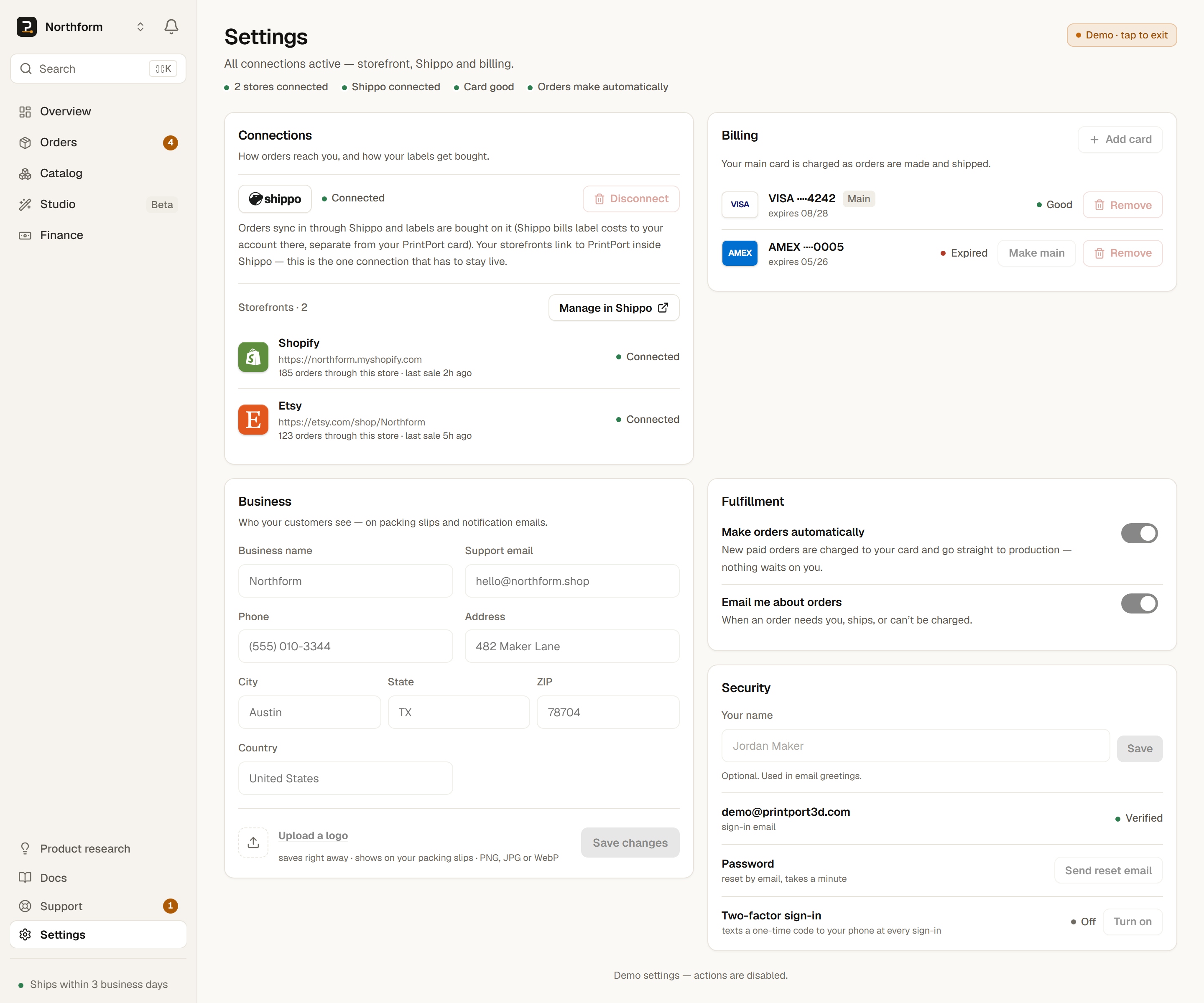
PrintPort3D recognizes exactly eleven storefront platforms: Shopify, Etsy, Amazon, TikTok Shop, eBay, Walmart, WooCommerce, Wix, Squarespace, Magento 2, and BigCommerce. Attach any of them inside Shippo, and each appears in Settings → Connections as a storefront tile with its own logo and a live order count.
How the list compares to Shippo’s catalog
These eleven are the storefronts PrintPort3D chooses to surface, not the limit of what you can connect. Because every connection runs through Shippo, the storefronts Shippo can attach extend well beyond this list. If your platform is not among the eleven, it may still be connectable in Shippo. Check Shippo’s own catalog to confirm.
No Square, and no “50+ platforms”
- Platforms PrintPort3D lists
- The eleven above, recognized and shown with their own logos in Settings.
- Platforms Shippo can connect
- A longer list, managed entirely in the Shippo dashboard. Any store Shippo can attach and hand to PrintPort3D as orders will flow through.
Managing connected stores
After setup, your connected storefronts appear in Settings, under Connections. That panel is read-only. It shows each store PrintPort3D sees through Shippo, along with the order count from each as confirmation the connection is working. There is no add-store button here, because stores are attached and removed in Shippo.
To add, change, or disconnect a storefront, open the Shippo dashboard from the link in Settings — Add in Shippo until a store is linked, Manage in Shippo after — and make the change there. If a connected store shows zero orders, your listing SKUs usually do not match your Catalog yet. See the SKU link.
A store can appear from a single order