Fix order problems
The order exceptions that require your attention, and how to resolve each one.
6 min read
Almost every order moves from sale to shipped box without your involvement. A few cannot: a card was declined, a SKU did not match, an order is waiting for your approval. These appear in the Action required tab of your Orders page, each with a single button that resolves it. There are five such buttons, and this page covers all of them.
Which action fixes which problem
Your Orders page is exception-first. It sorts the orders that need you to the top and lets the rest proceed on their own. Open any order that needs attention and the drawer shows a single action button matched to the problem. Before the action runs, you see a short preview of what it will do, including any charge.
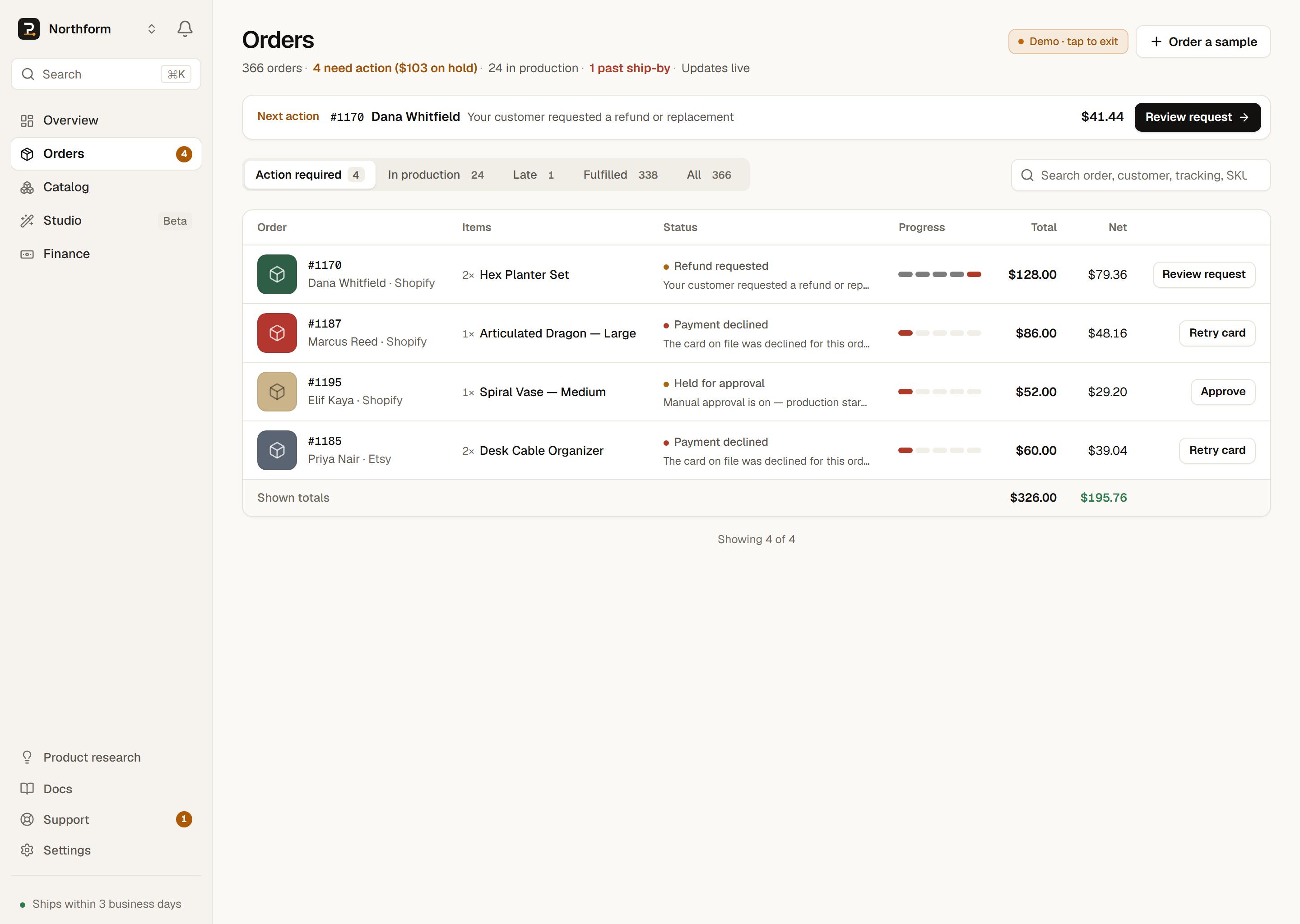
Anything not on this list, such as a printing hiccup, the platform handles on its own.
| Status chip | Button | What it does |
|---|---|---|
| Payment declined | Retry card | Runs the charge again after you fix your card. |
| No product match | Map product | Points each item at the right product, then charges your card and makes it. |
| Held for approval | Approve | Charges your card and sends the order into production. |
| Refund needed | Request refund | Files a refund request for an admin to review. |
| Delivery problem | Get help with this | Opens a support ticket already tied to the order. |
- Payment declinedButtonRetry cardWhat it doesRuns the charge again after you fix your card.
- No product matchButtonMap productWhat it doesPoints each item at the right product, then charges your card and makes it.
- Held for approvalButtonApproveWhat it doesCharges your card and sends the order into production.
- Refund neededButtonRequest refundWhat it doesFiles a refund request for an admin to review.
- Delivery problemButtonGet help with thisWhat it doesOpens a support ticket already tied to the order.
Two of these actions charge your card
One chip requires nothing from you: Reprinting. If a print fails, PrintPort remakes it automatically at no extra charge. This is a progress update, not a problem to resolve.
Retry card: clearing a declined payment
When PrintPort tries to charge your card for an order and the charge is declined, the order stops and shows Payment declined. Nothing was made and nothing was charged. The order waits for you to fix the card and try again.
There is no automatic retry
- 1
Fix the card first
A decline usually means the card expired or was rejected by the bank. Open Settings → Billing and add a working card, or use Make mainto promote one that works. See Manage payment cards. - 2
Open the declined order
In Orders, open the order carrying the Payment declined chip. The drawer action button reads Retry card. - 3
Tap Retry card and confirm
The amount to be charged is shown before you confirm. When you confirm, PrintPort re-runs the charge, buys the shipping label on your Shippo account, and sends the order into production.
A short cooldown applies between retries on the same order. If you tap too soon, PrintPort tells you how many minutes to wait. An unusually large charge may be held for review rather than retried; when that happens, contact support.
For the full explanation of why a card fails and how charges work, see When a payment fails.
Approve: approving a waiting order
By default, PrintPort waits for your approval on every order rather than charging your card automatically. These orders appear as Held for approval in your Action required tab. Nothing is charged and nothing is made until you approve.
- 1
Open the waiting order
Open any order showing Held for approval. The drawer button reads Approve. - 2
Review the make cost
The confirmation shows the make cost PrintPort will charge your card to produce the order, which is material plus labor. - 3
Approve and make
Confirming charges your saved card and starts production immediately. You will see “Approved — production is starting.”
Approve orders automatically
Map product: resolving an unmatched SKU
When an incoming item’s SKU does not match a live product in your catalog, PrintPort cannot determine what to make. The item is marked No product matchand the order waits for you. The fix is Map product: you point the item at the product it should have matched, and PrintPort makes it.
- 1
Open the unmatched order
Open the order carrying the No product match chip. Its button reads Map product. - 2
Choose the right product for each item
The mapper lists every unmatched line item. For each, search your catalog and select the product it should have matched. Only live products appear here. If the right one is not listed, it is likely still a draft; publish it in your Catalog first. - 3
Review the estimated charge
The mapper totals the make cost for the mapped items and shows it on the confirm button as Approve · $X. This is an estimate of what your card will be charged. - 4
Approve and make
Confirming maps the item, charges your saved card the make cost, and sends the order into production.
Mapping also teaches PrintPort this SKU, so a later order carrying the same code can match on its own. Mapping still only rescues the order in front of you. The lasting fix is to correct the SKU on your store listing so every future order matches automatically. The SKU link explains exactly why a match breaks — a typo, a wrong character, an empty SKU, or a still-draft product — and how to prevent the next one. Case and surrounding whitespace do not matter: PrintPort matches SKUs case-insensitively and ignores leading and trailing spaces. The characters themselves must still match.
Map product charges your card
Request refund: refunds and replacements
You can ask PrintPort to refund or replace an order, for example if something went wrong with a print. This is not an instant, self-served refund. It is a request that an admin reviews and decides.
- 1
Open the order
Open any order you have already been charged for. If it is eligible, the drawer footer shows a Request refund button. Orders that were never charged, or are already refunded or cancelled, do not show it. - 2
Confirm the request
Tapping Request refund opens a confirmation with an “up to $X” line, the most that could be returned. You do not enter a reason, set an amount, or choose between refund and replacement. The admin decides the outcome. - 3
Submit and wait for review
Once submitted, the order shows “Refund/replacement request pending review,” and the button is hidden so you cannot double-submit. A reviewer follows up.
When the customer requested it, not you
For what you can and cannot request, and how a decision is reached, see Refunds & replacements.
Get help with this: everything else
The four buttons above cover the problems you can resolve yourself. Everything else routes to a person. On those orders, the drawer button reads Get help with this, and tapping it opens a support ticket already tied to that order, so you do not have to explain which one.
These cases hand off to Support:
- Delivery problems — an order shows Delivery problem after it shipped (lost, returned, or a delivery exception).
- Address issues — a shipping address that cannot be used as-is.
- Label faileds — an order showing Label failed where the label could not be purchased.
- Quality or Needs review — anything flagged Needs review, plus a customer’s refund or replacement request.
- Paused or on hold — orders showing Paused or On hold.
There is no in-app edit, cancel, or reship
Action reference
- Retry cardno charge yet
- Re-runs a declined charge after you fix your card. Manual, per order, with a short cooldown, and never automatic.
- Approvecharges card
- Approves an order waiting in manual mode. Charges your card the make cost and starts production.
- Map productcharges card
- Points an unmatched item at the right product, charges your card, starts production, and teaches the SKU for next time.
- Request refundreview-based
- Files a refund or replacement request for an admin to review. Not instant, with no reason entry and no seller-set amount.
- Get help with this
- Opens a Support ticket tied to the order, for delivery, address, quality, and anything not self-serve.