Notifications
How PrintPort notifies you about activity in your workspace: in-app, by email, and through live page updates.
5 min read
PrintPort reaches you three ways: an in-app bell, email, and live page updates that keep your pages current without a refresh. Each channel carries different information. This page explains what appears where and how to control it.
Overview
The three channels do not overlap. The in-app bell is intentionally narrow today. Most order activity arrives by email, which is enabled from your first sign-in. Live updates are not a feed at all; they are your open pages re-fetching data on their own.
The bell is not your order inbox. Email is.
| Channel | What it carries today | On by default? |
|---|---|---|
| In-app bell, Overview feed, and toasts | Studio AI-design results only | Yes — always on |
| Orders, shipping, and Studio alerts | Yes — on from your first sign-in | |
| Mobile push | Order and support alerts | Requires the mobile app |
| Live updates | Orders, Finance, Overview, and Catalog refresh themselves | Yes — always on |
- In-app bell, Overview feed, and toastsWhat it carries todayStudio AI-design results onlyOn by default?Yes — always on
- EmailWhat it carries todayOrders, shipping, and Studio alertsOn by default?Yes — on from your first sign-in
- Mobile pushWhat it carries todayOrder and support alertsOn by default?Requires the mobile app
- Live updatesWhat it carries todayOrders, Finance, Overview, and Catalog refresh themselvesOn by default?Yes — always on
Order alerts do not appear in the bell
In-app notifications
The bell, the Overview feed, and toasts read from a single source, so they always agree. One flag marks each item read or unread. Marking an item in any surface updates all three.
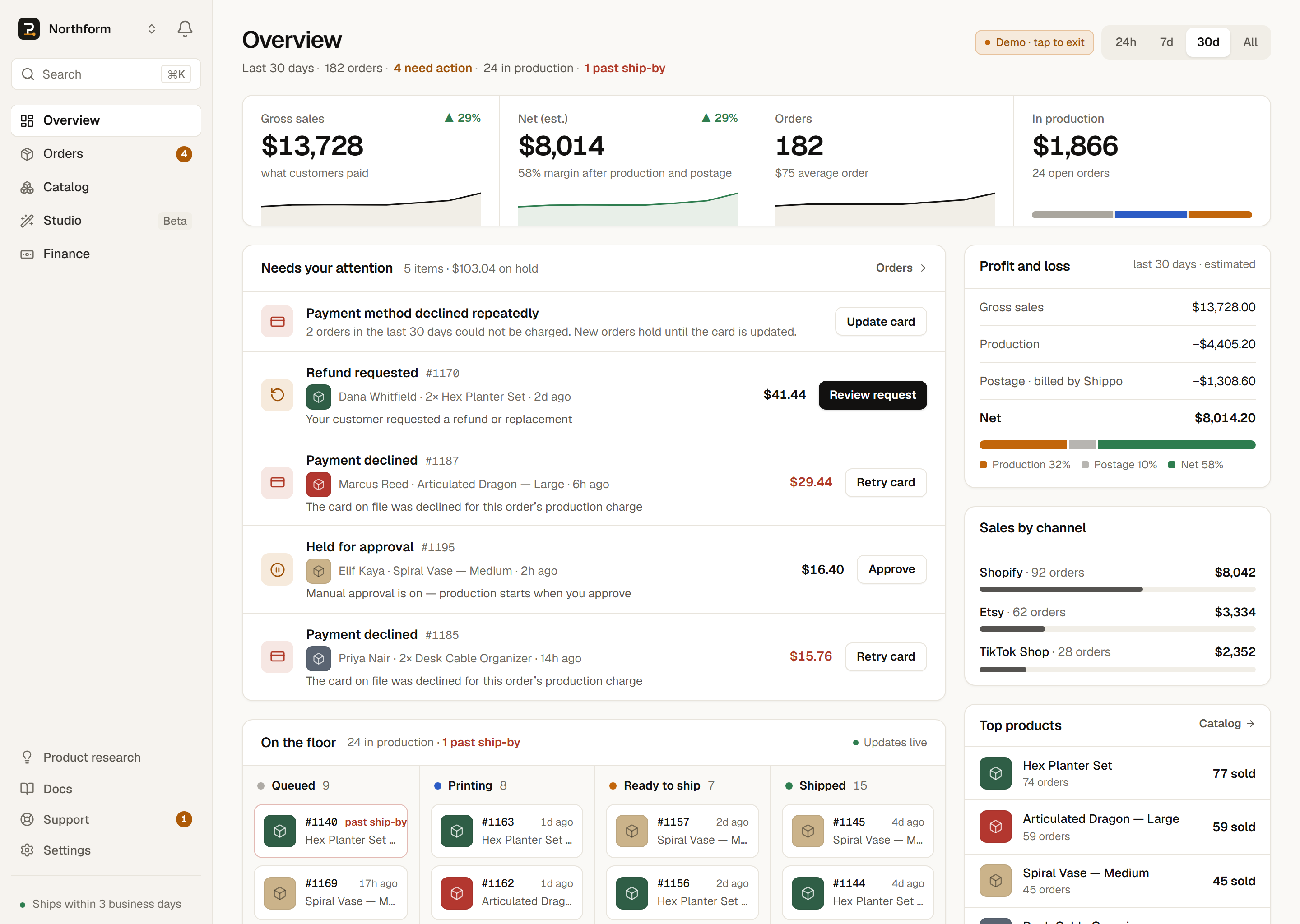
- The bellevery page
- Located at the top of the sidebar on desktop and the top bar on mobile. Opens a dropdown of your 20 most recent items. Unread items are bold with an ember dot; read items are greyed and kept as history. Mark all read clears them in one action.
- The Overview feed
- A Notifications card on your Overview that shows unread items only, up to four. The card is hidden when nothing is unread. If more than four items are unread, the card directs you to the bell.
- Toasts
- A small card that appears in the bottom-right when something arrives while you are on the page. Up to three stack at once, and each fades after six seconds. Click a toast to open it; the X hides it.
- The unread count99+ max
- A red number on the bell counts your unread notifications. It displays 99+ at most and disappears at zero. The pills next to Orders and Support are separate counts — orders that need you, and new admin replies — not the same unread total. See navigating for the full badge table.
Reading an item clears it everywhere
Dismissing a toast is not the same as reading it
What appears in the bell
The only event that creates an in-app notification today is a Studio AI-design job finishing. There are two possible items:
- “<name>” is ready — your design compiled and passed its checks. Opens the project in Studio.
- Your design didn’t work out — the job could not finish. Any credits you spent are refunded automatically.
Studio’s workbench also shows a live panel of every step while a design is being built, and keeps it afterward as a record of how the design was reached. See Studio credits for how refund-on-failure works.
The bell is a working set, not an archive
Email notifications
Because the bell does not carry order activity, email is how you learn that an order needs attention, a box shipped, or a card could not be charged. It is controlled by a single toggle, enabled at your first verified sign-in, so onboarded sellers receive these emails without any setup. To review or change the setting:
- 1
Open Settings → Fulfillment
Go to Settings and find the Fulfillment card. - 2
Check “Email me about orders”
This is the toggle described as “When an order needs you, ships, or can’t be charged.”It is on by default and controls every automated email listed below.
While enabled, PrintPort emails you when:
| You receive an email when… | What it tells you |
|---|---|
| An order needs you | A card was declined, a SKU did not match, or an order is waiting for your approval |
| An order ships | A label was purchased and the box is on its way to your customer |
| A payment cannot be processed | Your card was declined at charge time |
| A Studio design is ready or did not work out | An AI design job finished (this event also appears in the bell) |
- An order needs youWhat it tells youA card was declined, a SKU did not match, or an order is waiting for your approval
- An order shipsWhat it tells youA label was purchased and the box is on its way to your customer
- A payment cannot be processedWhat it tells youYour card was declined at charge time
- A Studio design is ready or did not work outWhat it tells youAn AI design job finished (this event also appears in the bell)
Enabled by default
Mobile push
If you use the PrintPort mobile app and sign in, order and support alerts can also arrive as push notifications. These have their own per-type switches — order received, shipped, failed, and support reply — configured inside the app rather than on the web Settings page. Push requires the app installed and signed in. Email is the channel to rely on for order activity.
Live page updates
The third system is not a notification. It is the reason you rarely need to reload. PrintPort maintains a per-seller signal that updates whenever your data changes: a new order lands, a status moves, or a payment captures. Your open pages detect the change and re-fetch in place.
The pages that update on their own:
- Orders — new orders and status changes appear without a refresh.
- Overview — KPIs, the “needs you” list, and the production pipeline update in place.
- Money — charges and profit figures update alongside.
- Catalog — product changes reflect live.
There is no spinner and no refresh button. Updates typically land within about a second. As a backstop, returning to a PrintPort tab triggers a fresh pull, so even if a change is missed by the live signal, you see current data the moment you return.
Live updates are not a shipment-tracking feed
Troubleshooting
- I’m not getting emails about my orders.
- This email is on by default, so first confirm it was not switched off. Open Settings → Fulfillment and check that “Email me about orders” is on. Turning it back on affects events from that point forward only; it does not re-send past ones.
- Orders aren’t showing up in the bell.
- This is expected. The bell carries only Studio design results. Watch Orders and your email for order activity.
- The unread count won’t clear.
- Open the item, or use Mark all read in the bell or the Overview feed. Hiding a toast does not count as reading it.
- My pages look stale.
- Switch away and back to the tab to force a fresh pull. If a figure still looks wrong, see Getting support.
For anything else, use the ⌘K command palette on desktop to jump anywhere quickly, or open a specific order and select Get help with this. The support route is /docs/help/getting-support, or email support@printport3d.com.