The Orders page
An exception-first order book that surfaces only the orders that require your attention.
5 min read
Most orders complete without any action from you. They arrive from your store, print in Orange, California, and ship automatically. The Orders page is built around that pattern. Rather than a long list to monitor, it is an exception-first order book: it moves the few orders that need your action to the top and lets everything else route to production on its own.
The facts line and Next action
Open Orders from the sidebar. Under the title, one line of facts answers whether anything needs you: for example “366 orders · 4 need action ($103 on hold) · 24 in production · 1 past ship-by · Updates live.” The count that needs action is amber and the count past ship-by is red.
$ on hold is the money tied up in orders stuck partway through charging, such as a declined card or an order held for your approval. It determines which order is most urgent.
When one or more orders need action, a Next action row sits above the list: the most urgent order — the one with the most money at stake — with its reason, its amount, and the one button that clears it. That button is the page’s only primary button, so you always know where to start.
No Next action row means you're done
The five tabs
Every order falls into exactly one tab, and each tab carries a live count that reflects the full set of orders, not only the page you are viewing. Orders are sorted as follows:
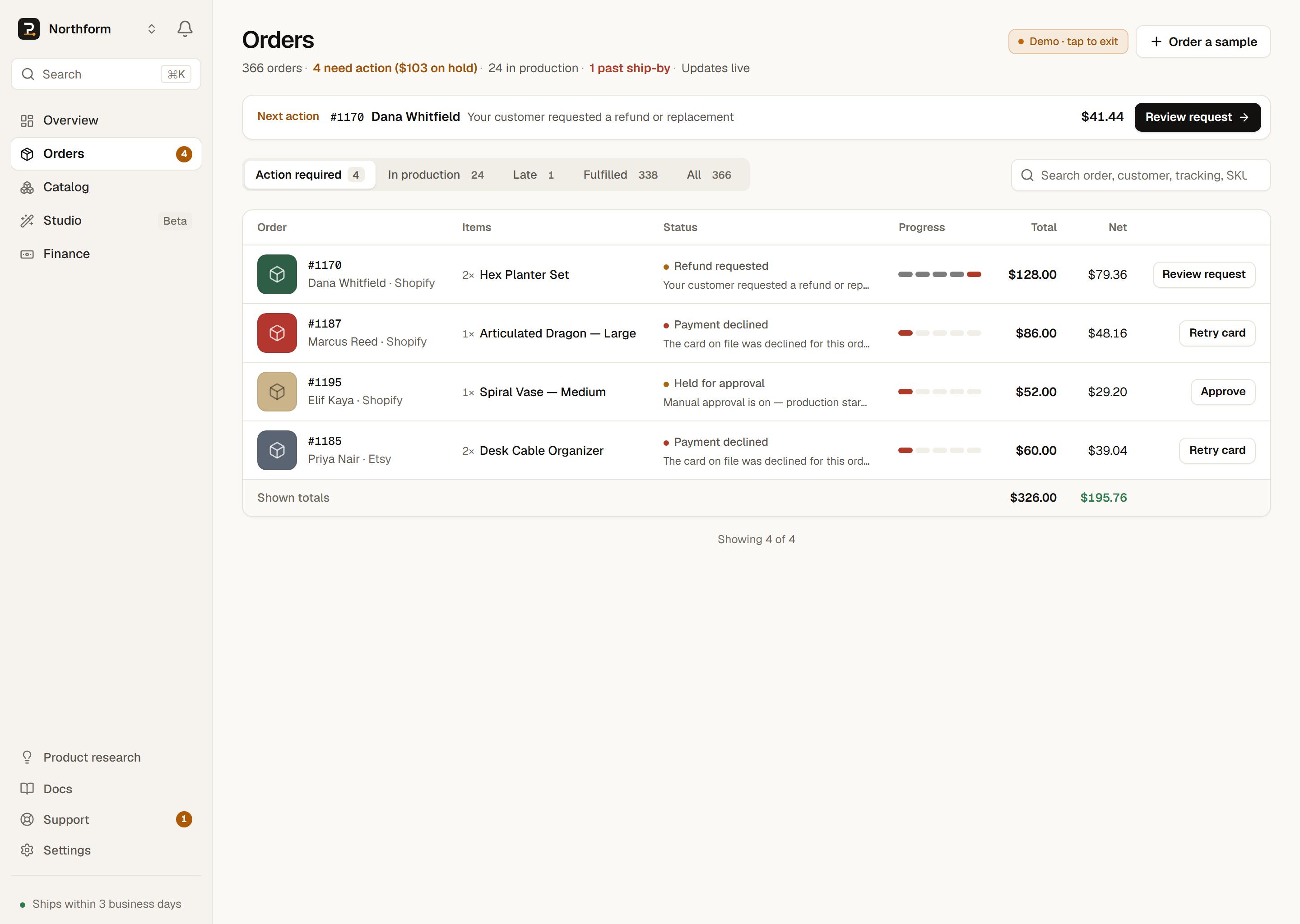
Each tab shows a live count; Action required turns hot when it is not empty.
| Tab | What it contains | How it is sorted |
|---|---|---|
| Action required | Orders with something only you can resolve: a declined card, an unmatched SKU, an order awaiting your approval, or a customer request. | By $ at risk, worst first |
| In production | Every live order that is moving on its own: queued, printing, printed, packed, or in transit. | By delivery pressure |
| Late | Open orders past their ship-by promise. This tab appears only when an order is actually late. | Most overdue first |
| Fulfilled | Shipped, delivered, refunded, or cancelled orders. | Most recent first |
| All | Every order, in one list. | Most recent first |
- Action requiredWhat it containsOrders with something only you can resolve: a declined card, an unmatched SKU, an order awaiting your approval, or a customer request.How it is sortedBy $ at risk, worst first
- In productionWhat it containsEvery live order that is moving on its own: queued, printing, printed, packed, or in transit.How it is sortedBy delivery pressure
- LateWhat it containsOpen orders past their ship-by promise. This tab appears only when an order is actually late.How it is sortedMost overdue first
- FulfilledWhat it containsShipped, delivered, refunded, or cancelled orders.How it is sortedMost recent first
- AllWhat it containsEvery order, in one list.How it is sortedMost recent first
Action required is the default view whenever it contains an order, and the tab is highlighted so it is easy to find. When it is empty, the page switches to In production. The Late tab appears only when there is a late order to show. It is tied to PrintPort’s internal 72-hour (3-day) ship-by promise, not a carrier date. A late order rarely indicates a mistake on your part; it means PrintPort is behind on its own promise, and those orders are moved to the front. See Tracking & delivery for more.
Reading an order row
Each row is a compact snapshot of one order. The entire row is clickable: select anywhere on it to open the order drawer. A row shows:
- The product’s picture — its rendered file, or its material colors — then the order number, the customer, and the channel it came from.
- Its ship-by date: “ship by <date>” when on track (amber when the date is close), or past ship-by in red when it is overdue.
- A status dot and label, a single plain-language word for where the order is, such as Printing or Shipped. Every label is defined in Order statuses.
- The order’s items, and a five-step progress tracker — Placed, Queued, Printing, Packed, Shipped — with the current step marked (red when the order is stopped) and, for multi-part orders, how many parts are printed.
- Two money figures: Total (what your customer paid you, an estimate) and Net (total minus production and postage, an estimate).
On a shipped row, the tracking number is a link. Selecting it opens the carrier’s tracking page in a new tab without opening the drawer. A Load more button at the bottom pulls in the next batch of orders when there is more than one page.
Why the money is an estimate
The order drawer
Opening any order shows the order drawer with the full order detail. On a wide screen it docks beside the list, so the list stays usable while an order is open; on smaller screens it slides over the page. It is the same drawer used throughout your Workspace, and it contains five panels. Close it with the Esc key or the X — or, when it slides over the page, a click outside it.
- Timeline
- A milestone timeline of what has actually happened: placed, payment confirmed, production started, packed, shipped via the carrier, and delivered. Only real events appear. If the order has not shipped yet, its ship-by line appears here.
- Productionper part
- Every part of the order with its own state (Queued, Printing, Printed, Packing, Packed, Shipped) plus an “X of Y printed” tally. If a part failed on the printer, it reads Reprinting: PrintPort re-runs it automatically, so you see progress rather than a failure.
- Items
- The products in the order. If a line item’s SKU does not match anything in your catalog, it is flagged with a No match chip, which indicates that you need to map it.
- Order economics
- What the customer paid (an estimate), the production cost charged to your card, postage billed by Shippo, and the resulting net. Net ≈ customer total − production − postage.
- Shipping
- The delivery address and, once the order has shipped, a tracking link (the truck icon) to the carrier’s page.
The money model, on every order
When an order needs you, the drawer leads with a banner and a single action: Retry card, Approve, Map product, Request refund, or Get help with this. Each action previews exactly what it will do before you confirm. The full set of recovery actions is covered in Fix order problems.
Search and live updates
The search box above the list matches on order number, customer name, tracking number, channel, and item name or SKU, so you can find one order by nearly anything you remember about it. The count on each tab updates to reflect your matches.
When you arrive here from a channel row on the Finance page, a channel chip appears (for example, “shopify”) and filters the book to that one storefront. Select the chip’s X to clear it and see every order again.
Live updates
You never have to reload this page. PrintPort maintains a per-seller live beacon. The moment any of your orders changes, whether a print finishes, a label prints, or a card clears, the Orders page refreshes itself in place. An “updates live” marker confirms it is connected. The same beacon keeps your Overview, Finance, and Catalog pages current.
What this page does not do