The Overview
Your sales and net, the orders and account alerts that need action, and every order in production by stage.
6 min read
Overview is where you land after signing in and the first page you check each day. It reads in the same order every time: four figures with their trend, what needs your attention, and every order on the floor by stage — with the profit and loss, sales by channel and top products down the side. Sellers who have not yet received an order see Get started instead, until the first order arrives.
Get started
Overview adapts to where you are in setup. You land on it as soon as your email is verified — there is no setup wizard in the way. Before your first order it shows Get started: five steps in two groups, with a count such as “2 of 5 complete” and a progress bar above them.
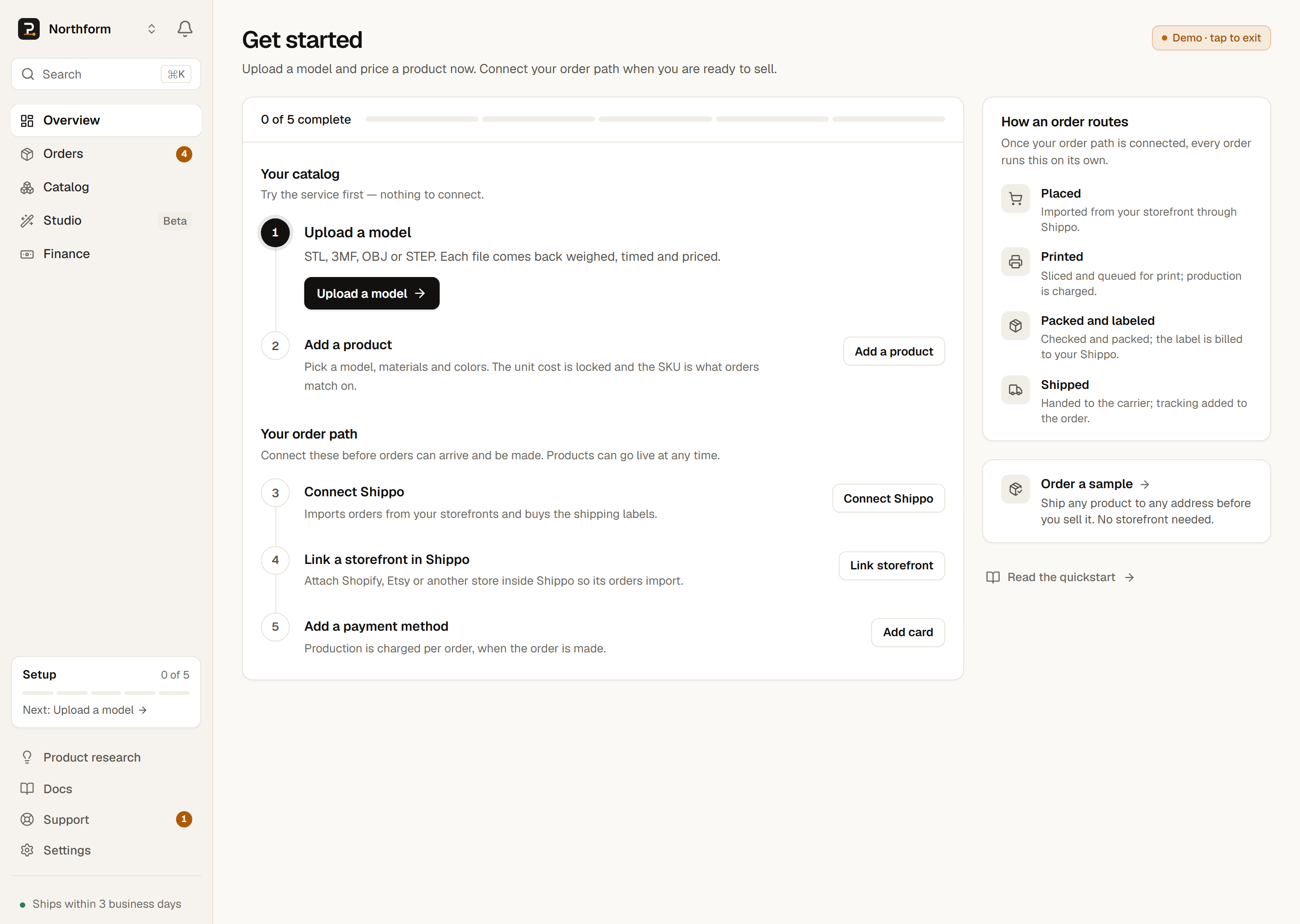
Your catalog — try the service first; nothing to connect:
- 1
Upload a model
An STL, 3MF, OBJ or STEP file. Each one comes back weighed, timed and priced. See Upload a design. - 2
Add a product
Pick a model, materials and colors; the unit cost is locked and the SKU is what orders match on. The step completes when a product is live — a draft says so and offers to publish it, because orders for a draft’s SKU arrive unmatched. See Create a product.
Your order path — connect these before orders can arrive and be made:
- 3
Connect Shippo — required to receive orders
Shippo imports orders from your storefronts and buys the shipping labels. See Connect Shippo. - 4
Link a storefront in Shippo — required to import sales
Attach Shopify, Etsy or another store inside Shippo so its orders import. See Link your store in Shippo. A store already linked in a Shippo account you have not connected yet shows as waiting — it imports once Shippo is connected. - 5
Add a payment method — required before production
Production is charged per order, when the order is made. See Add your payment card.
Only the next unfinished step is opened up, with its button; completed steps collapse to what they achieved, for example “3 models uploaded” or “Connected · orders import”. Beside the steps, How an order routes sets out the four stages every order follows (Placed, Printed, Packed and labeled, Shipped), with a link to order a sample to any address. When every step is complete but no order has arrived yet, the page reads “Ready for your first order.”
The Setup card in the sidebar
Steps complete on evidence, not clicks
The facts line and the four figures
Once orders exist, the title is followed by one line of facts for the selected range, such as “Last 30 days · 182 orders · 4 need action · 24 in production · 1 past ship-by.” The count that needs action is amber and the count past ship-by is red, so the line reads as a status at a glance.
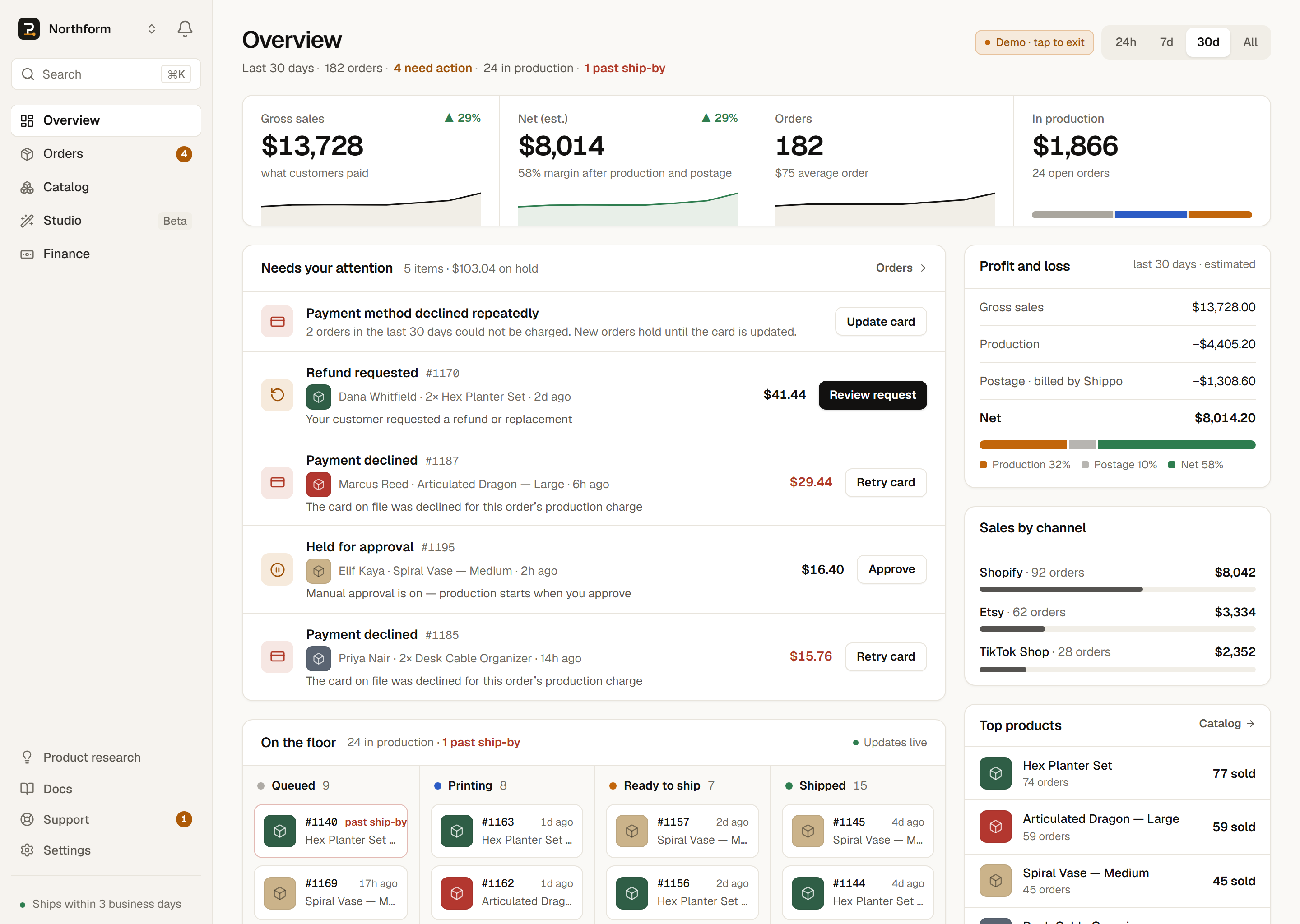
Below it sit four figures. Each is a read, not a control.
The trend lines always cover the last eight weeks; the range tabs change the figures, not the lines.
| Figure | What it shows | Underneath |
|---|---|---|
| Gross sales | What customers paid across the range, with a change versus the prior equal-length period. | An 8-week trend line. Gross sales is an estimate read from the customer total on each order. |
| Net (est.) | Gross sales minus production (our charges, after refunds) minus postage, with the change versus the prior period. | The margin, and an 8-week trend line of net. |
| Orders | How many orders arrived in the range. | The average order value, and an 8-week trend line of order count. |
| In production | The value of orders still being made or awaiting payment — not yet shipped and not waiting on you. | The number of open orders, and a bar split by stage: Queued, Printing, Ready to ship. |
- Gross salesWhat it showsWhat customers paid across the range, with a change versus the prior equal-length period.UnderneathAn 8-week trend line. Gross sales is an estimate read from the customer total on each order.
- Net (est.)What it showsGross sales minus production (our charges, after refunds) minus postage, with the change versus the prior period.UnderneathThe margin, and an 8-week trend line of net.
- OrdersWhat it showsHow many orders arrived in the range.UnderneathThe average order value, and an 8-week trend line of order count.
- In productionWhat it showsThe value of orders still being made or awaiting payment — not yet shipped and not waiting on you.UnderneathThe number of open orders, and a bar split by stage: Queued, Printing, Ready to ship.
The top-right holds the range tabs: 24h · 7d · 30d · All, defaulting to 30d. These are trailing windows (“the last 30 days”), never calendar months. Changing the range re-reads the figures, the facts line, the profit and loss, sales by channel and top products.
Why gross sales is an estimate
Needs your attention
Most orders route to production on their own. Needs your attention lists only what requires a decision, with a count and the amount on hold. Account alerts come first, then up to six orders, each with a one-tap action. The order with the most money at stake gets the primary button. Click an order’s text to open the order drawer in place; if more than six need action, an “All N in Orders” link opens the full list under Orders → Action required.
- Priced below costReview pricing
- Open orders whose net came out negative. The link opens your Catalog filtered to below-cost products; see Price your products.
- Payment method declined repeatedlyUpdate card
- Two or more declined charges in the last 30 days. The link opens billing in Settings.
- Orders held — no payment methodAdd card
- Orders have arrived and no card is on file, so they cannot be made.
- Shippo disconnected / No storefront connectedReconnect / Connect
- A connection is missing, which stops orders importing or labels being bought.
Each order’s button states exactly what it needs:
Retry card, Approve, Ship it anyway and Issue refund run behind a confirmation on the Overview; the rest open the order drawer.
| Button | Status | What happens when you tap it |
|---|---|---|
| Retry card | Payment declined | Opens a confirmation showing the amount, then re-runs the charge. There is no automatic retry; you decide when. |
| Approve | Held for approval | Opens a confirmation, then charges your card the production cost and starts production. |
| Ship it anyway | Held — below cost | The order sells for less than production plus postage. Approving captures the charge already held and starts production. |
| Fix address / Add address | Address needed | Opens the order drawer’s address form; nothing is made or charged until it is fixed. |
| Try again | Label failed | Opens the order drawer, where it re-runs the label purchase behind a confirmation. |
| Map product | No product match | Opens the order drawer to match the item to a Catalog product. The match is remembered. |
| Review request | Refund requested / Replacement requested | Opens the order drawer so you can review the customer’s request. |
| Issue refund | Refund needed | Opens a confirmation and sends a review-based refund request. |
| Review / Contact support | Needs review / Paused | Opens the order drawer, which routes to Support where only a person can resolve it. |
- Retry cardStatusPayment declinedWhat happens when you tap itOpens a confirmation showing the amount, then re-runs the charge. There is no automatic retry; you decide when.
- ApproveStatusHeld for approvalWhat happens when you tap itOpens a confirmation, then charges your card the production cost and starts production.
- Ship it anywayStatusHeld — below costWhat happens when you tap itThe order sells for less than production plus postage. Approving captures the charge already held and starts production.
- Fix address / Add addressStatusAddress neededWhat happens when you tap itOpens the order drawer’s address form; nothing is made or charged until it is fixed.
- Try againStatusLabel failedWhat happens when you tap itOpens the order drawer, where it re-runs the label purchase behind a confirmation.
- Map productStatusNo product matchWhat happens when you tap itOpens the order drawer to match the item to a Catalog product. The match is remembered.
- Review requestStatusRefund requested / Replacement requestedWhat happens when you tap itOpens the order drawer so you can review the customer’s request.
- Issue refundStatusRefund neededWhat happens when you tap itOpens a confirmation and sends a review-based refund request.
- Review / Contact supportStatusNeeds review / PausedWhat happens when you tap itOpens the order drawer, which routes to Support where only a person can resolve it.
The confirmation step states the real consequence
When nothing needs a decision, the panel reads “Nothing needs your attention.” For the full procedure on each fix, see Fix order problems and Refunds & replacements.
On the floor
On the floor is every order in motion, by stage, in four columns: Queued, Printing, Ready to ship and Shipped. Each column shows its count and its first three orders — orders past ship-by first, then the oldest — with the product’s picture, the order number, what is in it and who it is for. An order past its ship-by date is outlined and marked past ship-by in red. + N more opens the rest in Orders. Orders that need your action are left off the board; they are in the list above it. On a phone the columns stack and show two orders each.
The ship-by date comes from the fulfillment promise window: 72 hours from order to shipped by default (48 hours for TikTok Shop orders), flagged at-risk once 70% of it has elapsed. This is a platform setting, not something you configure. See Tracking & delivery for how “late” is defined.
Profit and loss, channels, and top products
Down the right side, Profit and loss lays the selected range out top to bottom, with a bar showing what share went to production, to postage, and to you.
The numbers above are an illustration only; yours are computed from your real orders and marked as estimates. For the full ledger and card history, open Finance.
Sales by channel splits gross sales by storefront, and Top products ranks what sold in the range, each with its picture and units sold. Statuses across the workspace use the same vocabulary — Printing, Shipped, Payment declined — defined in full on Order statuses.
Overview refreshes itself — no reload needed
The layout is fixed and identical for everyone: there are no panels to pin, collapse or rearrange. Overview is a read on your shop, not a workspace to arrange.
Next steps
Overview links out to the rest of your workspace. Continue with whichever area you need next.